HiveMQ Cloud Integrations
HiveMQ Cloud provides out-of-the-box, fully managed integrations that let you instantly connect your MQTT broker to popular services.
HiveMQ Cloud integrations offer a simple and straightforward way to configure data streaming between HiveMQ Cloud and the service of your choice without ongoing operational burden.
-
To view and configure integrations for your HiveMQ Cloud Starter plan brokers, navigate to the Connect page of your HiveMQ Platform.
-
On the Connect & Manage Network overview, select your HiveMQ Cloud broker to open the broker details and switch to the Integrations tab.
-
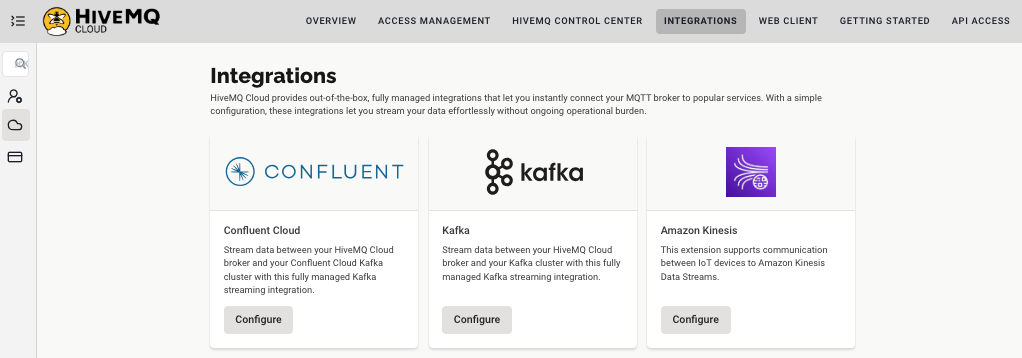
On the Integrations tab, select the integration that you want to configure for your HiveMQ Cloud broker.
-
Confluent Cloud: Stream data between your HiveMQ Cloud broker and your Confluent Cloud Kafka cluster.
-
Apache Kafka: Stream data between your HiveMQ Cloud broker and the Apache Kafka cluster of your choice.
-
Amazon Kinesis: Stream data between your HiveMQ Cloud broker and Amazon Kinesis Data Streams.
HiveMQ Cloud Integrations for Apache Kafka
Apache Kafka is an open-source streaming platform that is widely used for real-time data pipelines, streaming analytics, and data integration at scale.
MQTT and Kafka are frequently used together to enhance the functionality of IoT and machine-to-machine communication.
Common use cases include the following:
-
Data collection: Transmit MQTT data from IoT devices to a Kafka broker for further processing in a system of your choice.
-
Real-time processing: Use MQTT and Kafka to build scalable real-time data processing pipelines that can handle large amounts of incoming IoT device data.
The HiveMQ Cloud Starter plan supports two fully managed Kafka streaming integrations. On the Integrations tab of your HiveMQ Cloud Starter broker details you can select the Kafka integration option that is right for you.
Confluent Cloud Integration - HiveMQ Cloud Starter Plan
The HiveMQ Cloud Confluent Cloud Kafka integration makes it possible to move MQTT messages bidirectionally between HiveMQ Cloud and your existing Confluent Cloud Kafka cluster.
-
On the Integrations tab of your HiveMQ Cloud Starter broker, click Configure on the Confluent card.
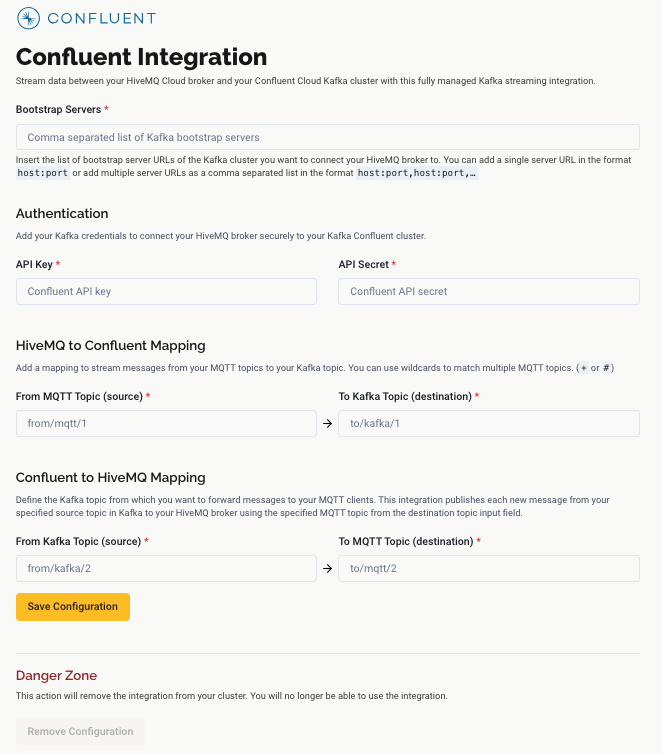
A page to define how HiveMQ Cloud connects to your existing Confluent Cloud Kafka cluster and configure the bidirectional data flow between your HiveMQ Cloud broker and Confluent opens:
-
In the Bootstrap Servers section, enter one or more bootstrap server URLs for the Kafka cluster to which you want your HiveMQ Cloud broker to connect.
Use the formathost:port.
To list multiple bootstrap server URLs, enter a comma-separated string with the formathost:port,host:port,…. -
In the Authentication section, enter your Kafka credentials to secure the connection between your HiveMQ Cloud broker and your Confluent Cloud Kafka bootstrap servers.
Your Confluent Cloud Kafka API Key and API Secret are required.
Confluent Topic Mapping
The HiveMQ to Confluent Mapping area defines the MQTT topic from which you want to forward messages to your Kafka cluster. This integration forwards any message published with this MQTT topic to the Kafka topic specified in the destination topic input field.
-
In the From MQTT Topic field, enter the source MQTT topic from which you want to forward messages to your Kafka cluster.
-
In the To Kafka Topic field, enter the destination Kafka topic to which the Confluent integration automatically forwards messages published with the source MQTT topic you input as the From MQTT Topic.
Both fields are required.
The Confluent to HiveMQ Mapping area defines the Kafka topic from which you want to forward messages to your MQTT clients. This integration publishes each new message from your specified source topic in Kafka to your HiveMQ broker using the specified MQTT topic from the destination topic input field.
-
In the From Kafka Topic field, enter the source Kafka topic from which you want to forward messages to your MQTT clients.
-
In the To MQTT Topic field, enter the destination MQTT topic to which the Confluent integration automatically publishes each new message from the specified From Kafka Topic source topic in Kafka to your HiveMQ broker.
Both fields are required. -
To save your changes and enable the integration, click Save Configuration.
| Creation of the integration can take a few minutes. |
Apache Kafka Integration - HiveMQ Cloud Starter Plan
The HiveMQ Cloud Kafka integration makes it possible to move MQTT messages bidirectionally between HiveMQ Cloud and your existing Apache Kafka cluster.
-
On the Integrations tab of your HiveMQ Cloud Starter cluster, click Configure on the Kafka card.
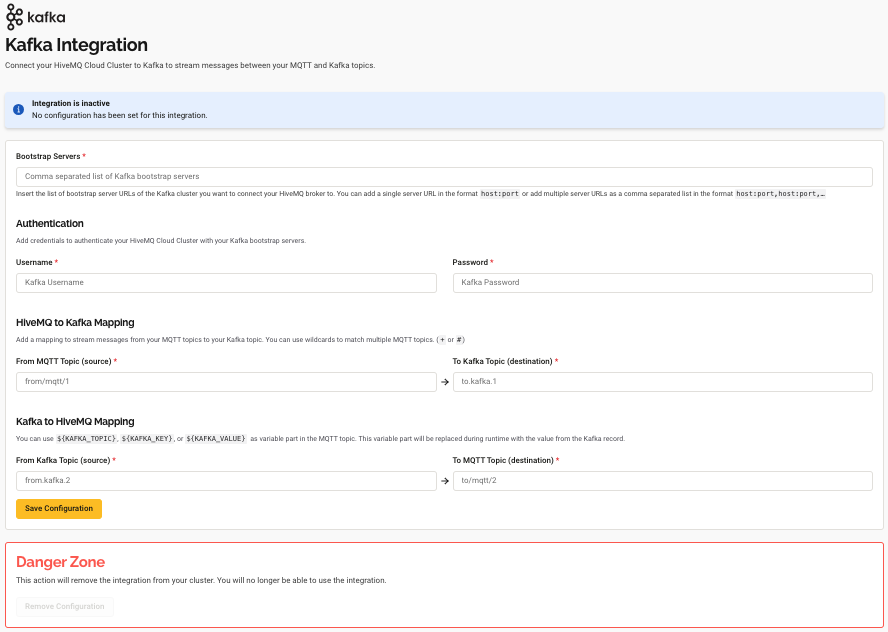
A page to define how HiveMQ Cloud connects to a Kafka cluster of your choice and the bidirectional data flow between your HiveMQ Cloud broker and Apache Kafka opens:
-
In the Bootstrap Servers section, enter one or more bootstrap server URLs for the Kafka cluster to which you want your HiveMQ Cloud broker to connect.
Use the formathost:port.
To list multiple bootstrap server URLs, enter a comma-separated string with the formathost:port,host:port,… . -
In the Authentication section, enter your Kafka credentials to secure the connection between your HiveMQ Cloud broker and your Kafka bootstrap servers. Your Kafka Username and Password are required.
Kafka Topic Mapping
-
In the HiveMQ to Kafka Mapping section, define the source MQTT topic from which you want to stream messages to your Kafka cluster and the target Kafka topic to receive the MQTT messages.
You can use+or#wildcards to match multiple MQTT topics.
The Kafka integration automatically forwards all messages published with the source MQTT topic to the Kafka topic that you specify in the target Kafka topic input field. Both fields are required.
| MQTT messages are sent with QoS 1 by default. |
-
In the Kafka to MQTT Mapping section, define the source Kafka topic from which you want to forward messages to your MQTT clients.
You can useKAFKA_TOPIC,KAFKA_KEY, orKAFKA_VALUEvariables in the destination MQTT topic.
Variables are denoted with${}notation.
In the generated MQTT message, the variable is dynamically replaced at runtime with specific content from the Kafka record.
The Kafka integration automatically publishes each new message from your specified source topic in Kafka to your HiveMQ broker with the MQTT topic you define in the target topic input field. Both fields are required. -
To enable the Kafka integration, select Save Configuration.
| Creation of the integration can take a few minutes. |
-
To permanently delete the enabled Kafka integration from your cluster, click Remove Configuration.
This action removes the integration from your cluster and cannot be undone.
Amazon Kinesis Integration - HiveMQ Cloud Starter Plan
The HiveMQ Cloud Amazon Kinesis Integration supports communication between your IoT devices and Amazon Kinesis Data Streams. Once integrated, your data can be processed, stored, analyzed, or visualized for AI/ML projects within Amazon Web Services (AWS).
-
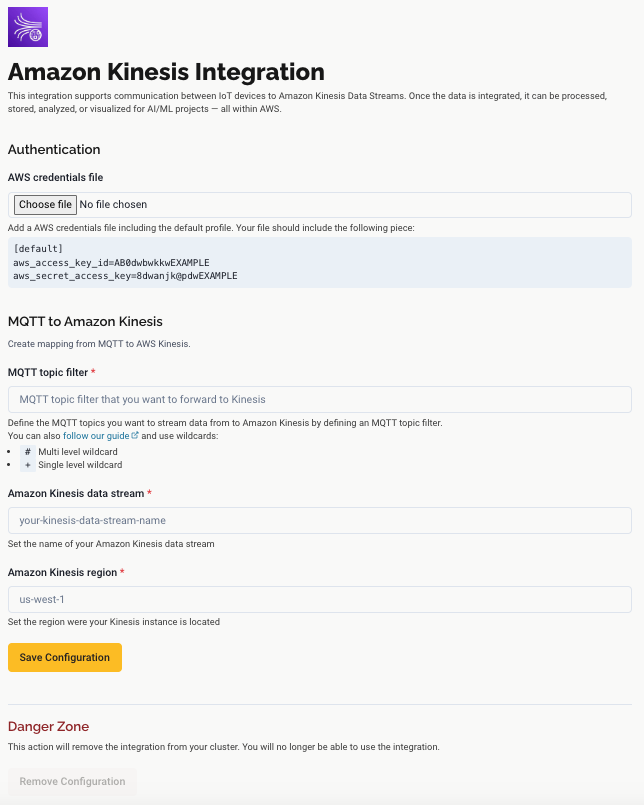
On the Integrations tab of your HiveMQ Cloud Starter broker, click Configure on the Amazon Kinesis card. A page to define how MQTT messaging data moves between your HiveMQ Cloud broker and the Amazon Kinesis Data Streams service opens:
-
In the Authentication section, add credentials to authenticate your HiveMQ Cloud broker with AWS Kinesis:
-
Access Key ID: The unique public identifier of the Amazon Web Services (AWS) access key pair used to authenticate programmatic requests to AWS services.
-
Secret Access Key: The private, confidential component of the access key pair used to securely sign and authenticate programmatic requests to AWS services.
-
Amazon Kinesis Topic Mapping
-
In the MQTT to Amazon Kinesis section, define how MQTT messages are sent from HiveMQ Cloud to Amazon Kinesis Data Streams.
Both fields are required:-
MQTT topic filter: The topics from which you want to forward messages to Amazon Kinesis Data Streams. You can use
+or#wildcards to match multiple MQTT topics. The Amazon Kinesis integration automatically forwards all messages published with the source MQTT topic to the data stream you specify. -
Amazon Kinesis data stream: The target Amazon Kinesis Data Stream to which the configured MQTT messages are routed.
-
-
In the Amazon Kinesis Region input field, enter the region where your Amazon Kinesis instance is located.
-
To enable the Amazon Kinesis integration, select Save Configuration.
| Creation of the integration can take a few minutes. |