HiveMQ Edge on Siemens Industrial Edge
HiveMQ Edge is available as an application for Siemens Industrial Edge. You get the application from the Siemens Digital Exchange, the marketplace for Industrial Edge.
This page has two parts:
Tutorial
What This Is
This tutorial is about HiveMQ Edge as an application on Siemens Industrial Edge. You install, configure, and manage the application in Siemens Industrial Edge Management, as with every other application on an Industrial Edge Device.
HiveMQ Edge runs next to machines on a plant floor. It reads data points from these machines through multiple protocols, for example, OPC UA, Modbus, or S7, and publishes them as MQTT messages. It forwards these messages through a bridge to an MQTT broker. There are two applications. HiveMQ Edge is the standard product. HiveMQ Edge Licensed is the licensed product and also supports the connection to the HiveMQ Platform, Data Intelligence, Data Hub, and MQTT persistence.
Industrial Edge Management has two designs. This tutorial uses the new design. If you still use the previous design, the steps look slightly different.
This tutorial is about how you install and configure HiveMQ Edge, and not about how you use it. It therefore applies to both products. The one exception is the section Install a License.
This tutorial is for an operator who has general knowledge of Siemens Industrial Edge Management and of HiveMQ Edge. For Industrial Edge Management, see the Siemens Industrial Edge documentation at https://docs.industrial-operations-x.siemens.cloud/p/industrial-edge. For HiveMQ Edge, see the HiveMQ Edge documentation. For the details of the application on Industrial Edge, see the Reference.
Get HiveMQ Edge Running
In this section, you install the application on a device. HiveMQ Edge then runs with the default configuration that ships with the application.
-
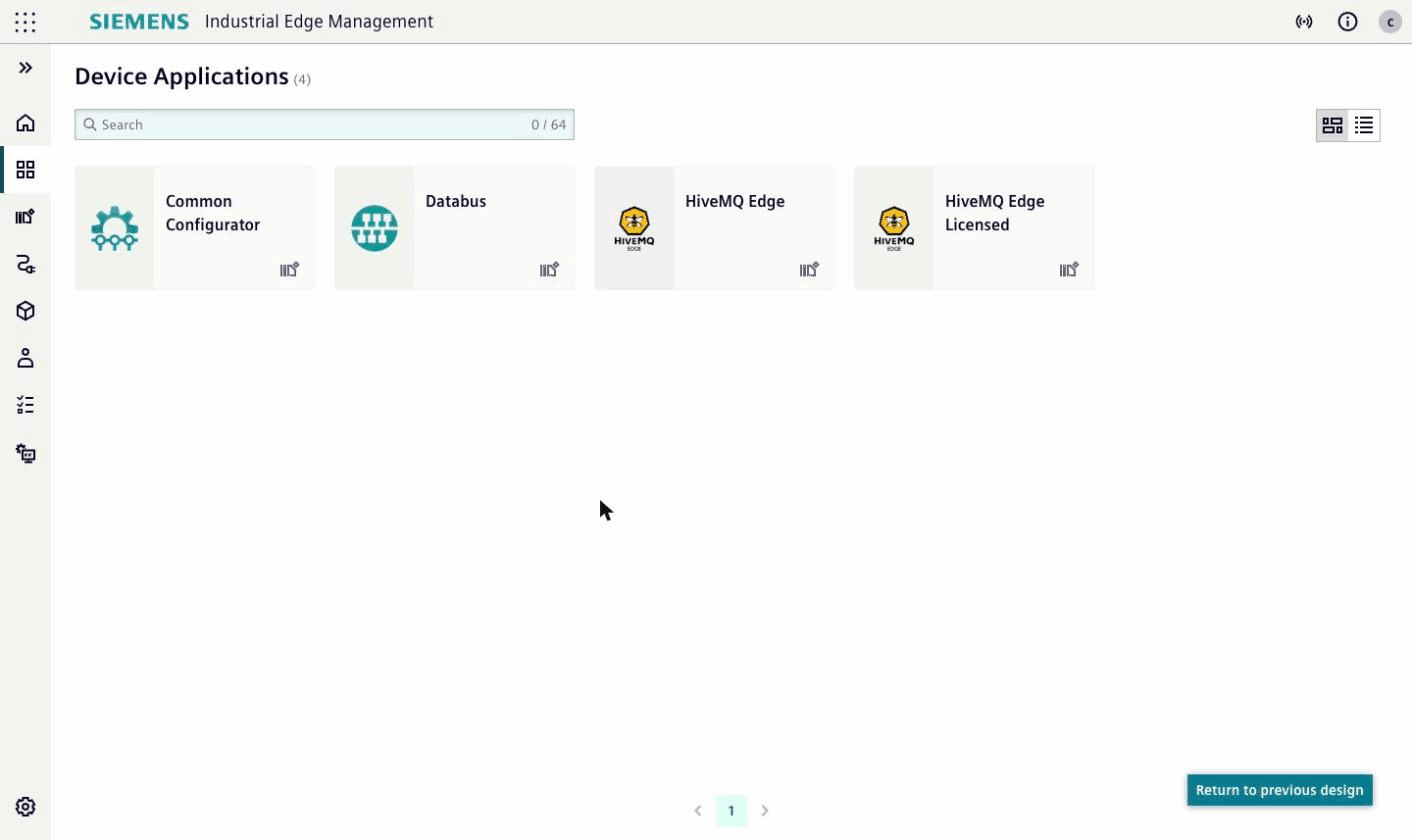
In Industrial Edge Management, select Applications and then Device in the menu on the left.
-
Click the tile HiveMQ Edge.
-
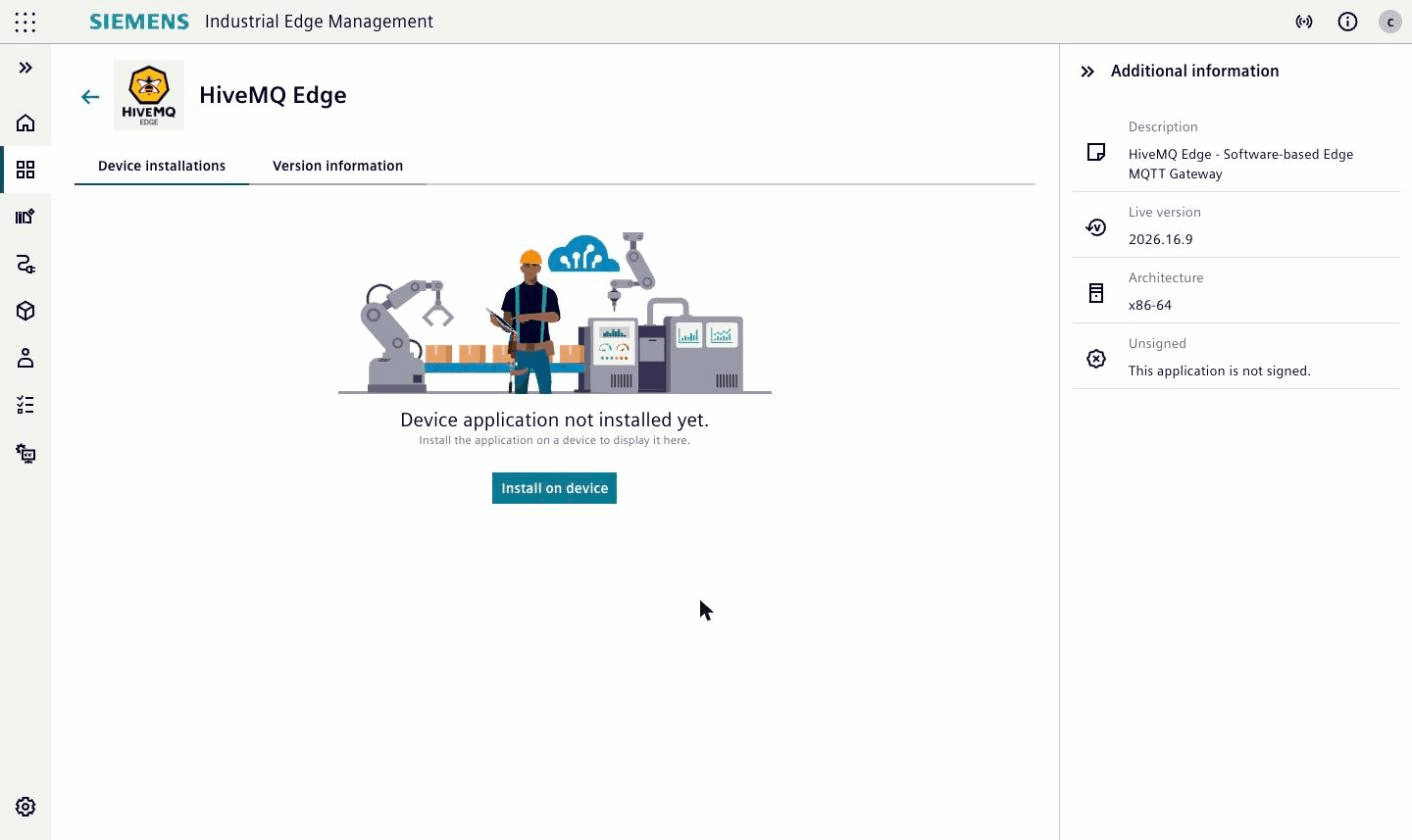
Click Install on device.
-
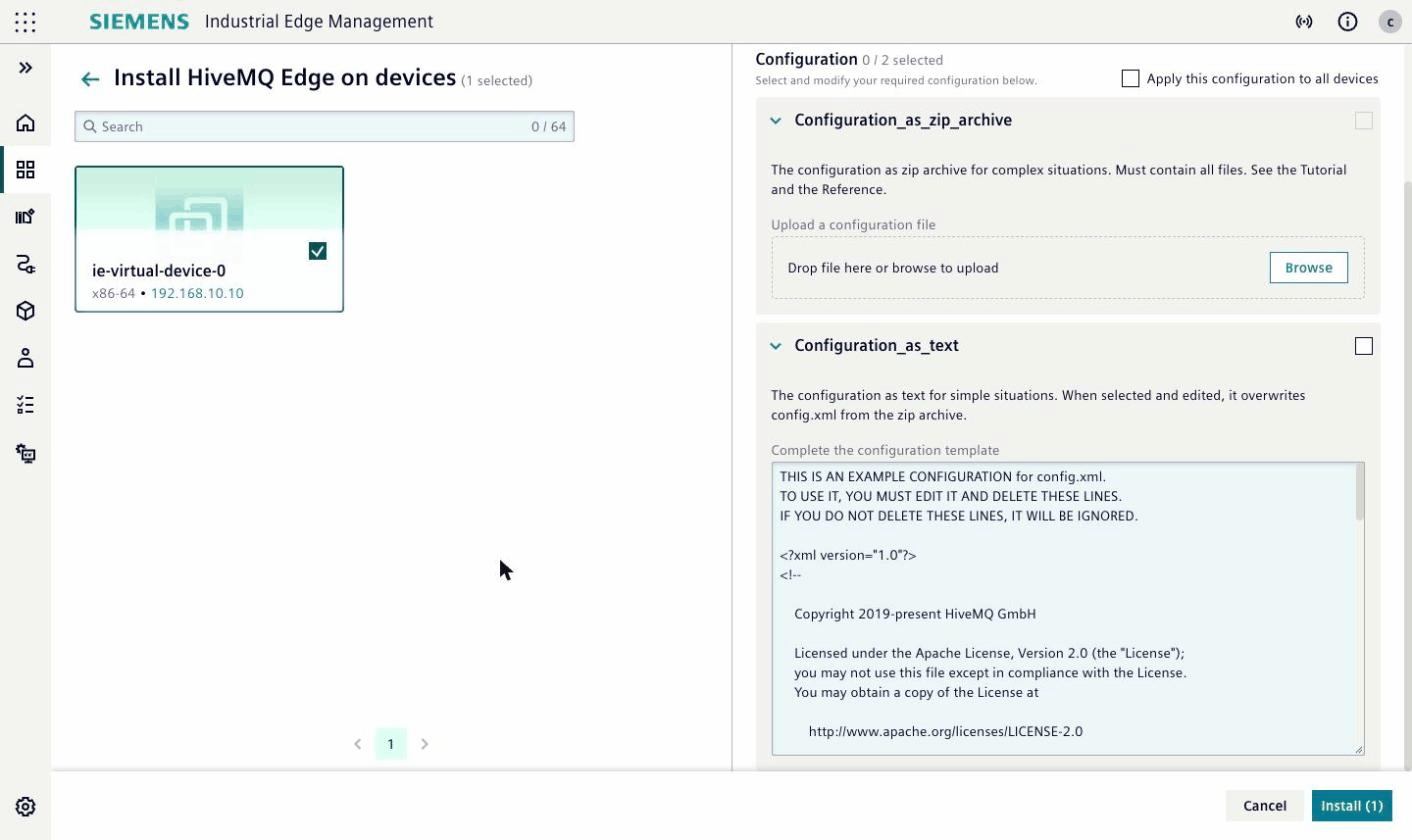
Select the check box of the device.
After you select the device, the install screen shows the section Configuration.
In this section, you configure the application.
HiveMQ Edge is a product with many options, so one or more files describe its configuration: the general configuration file config.xml and, for example, certificates.
You send these files through the inputs of the application: all files together as one ZIP archive, or config.xml alone as text, which you can edit in the editor.
The inputs are the only way to send files to the application, because the Industrial Edge Device allows no direct access.
You see the same inputs again later, when you change the configuration of the installed application.
Each input is a row. To open a row, click the row. An open row shows a description of the input and the control for the content.
| Input | Content | Use For |
|---|---|---|
|
The configuration file |
A first try and small changes |
|
A ZIP archive with |
A real setup |
|
A license file |
The licensed product only |
Industrial Edge Management sends an input only if you select the check box of the input. For the first start, you send no input:
-
Under Configuration, select no check box.
-
Click Install.
HiveMQ Edge starts with the default configuration that ships with the application. That configuration has one MQTT listener and keeps the login to the Console closed. The Console is the web interface of HiveMQ Edge. For the ports of the application on the device, see Ports.
To see that the installation is complete, open the page of the application again. The page lists the device under Device installations. To see the result on the device itself, see the section See What the Application Did.
Change the Configuration
In this section, you make a first change to the configuration.
You add a user, so that you can log in to the Console.
You also add an adapter that simulates a machine.
Every second, the adapter publishes a random temperature between 15 and 25 to the topic tutorial/temperature.
For a small change, you use the text input.
The editor of the text input shows an example configuration, which is the configuration that ships with the application.
The example starts with a notice of three lines, and each line starts with #.
To use the text, edit the text and delete every line of the notice.
The application ignores a text that still starts with #.
The application rejects a text that starts with neither < nor #.
The text replaces config.xml and no other file.
The Login to the Console
The default configuration keeps the login to the Console closed.
The element <username-authentication> in config.xml controls the login.
You have three choices:
-
Leave the login closed. If HiveMQ Edge runs without anyone who uses the Console, use this choice. Keep
<enabled>false</enabled>. -
Define your own user name and password. This tutorial uses this choice.
-
Connect HiveMQ Edge to an authentication service, for example, LDAP or OpenID Connect. See the HiveMQ Edge documentation.
Every config.xml that you send must contain <username-authentication>.
Without that element, HiveMQ Edge opens the built-in account admin, whose password is publicly known.
For the same reason, you must not use the user name and the password of the built-in account for your own user.
For more information, see Write config.xml.
|
The password is in config.xml as plain text.
Industrial Edge Management stores the text input encrypted.
On the device, config.xml is not encrypted.
The Steps
-
On the page of the application, click the three dots at the end of the row of the device. Then click Update configuration.
-
Open the row
Configuration_as_text. -
Delete the three lines of the notice at the top of the text. The text then starts with
<?xml version="1.0"?>. -
In the element
<username-authentication>, change<enabled>false</enabled>to<enabled>true</enabled>. -
Add the following block after the line
</username-authentication>. Replace the user name and the password with your own:<users> <user> <username>your-admin</username> <password>a-strong-password</password> <roles><role>admin</role></roles> </user> </users> -
Add the following block before the last line of the text,
</hivemq>:<protocol-adapters> <protocol-adapter> <adapterId>tutorial-simulation</adapterId> <protocolId>simulation</protocolId> <config> <simulationToMqtt> <pollingIntervalMillis>1000</pollingIntervalMillis> </simulationToMqtt> </config> <northboundMappings> <northboundMapping> <topic>tutorial/temperature</topic> <tagName>temperature</tagName> </northboundMapping> </northboundMappings> <tags> <tag> <name>temperature</name> <description>A random temperature between 15 and 25</description> <definition> <randomValue> <valueType>DOUBLE</valueType> <minValue>15</minValue> <maxValue>25</maxValue> </randomValue> </definition> </tag> </tags> </protocol-adapter> </protocol-adapters> -
Select the check box of the row.
-
Select Restart application after update.
-
Click Update.
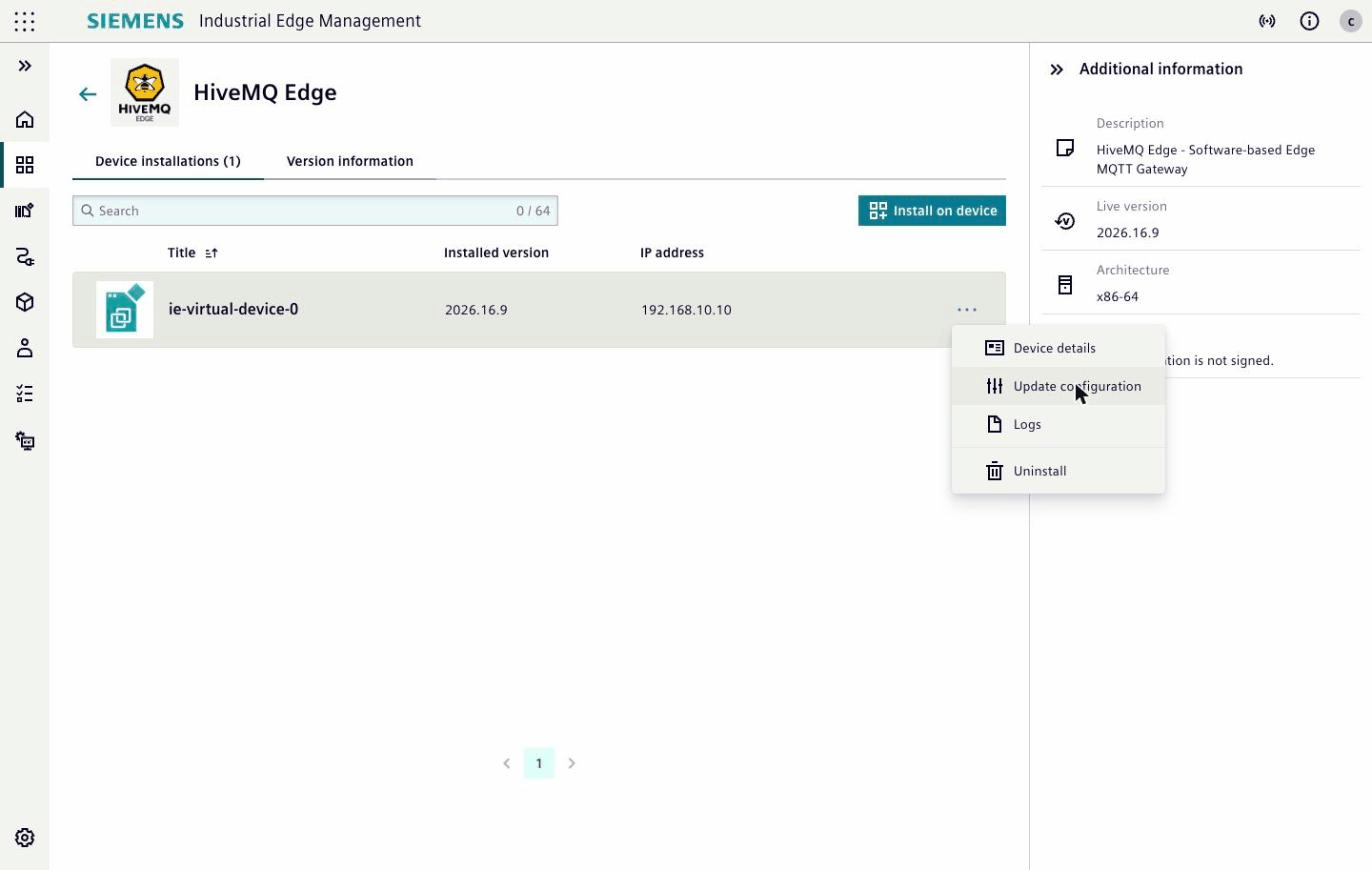
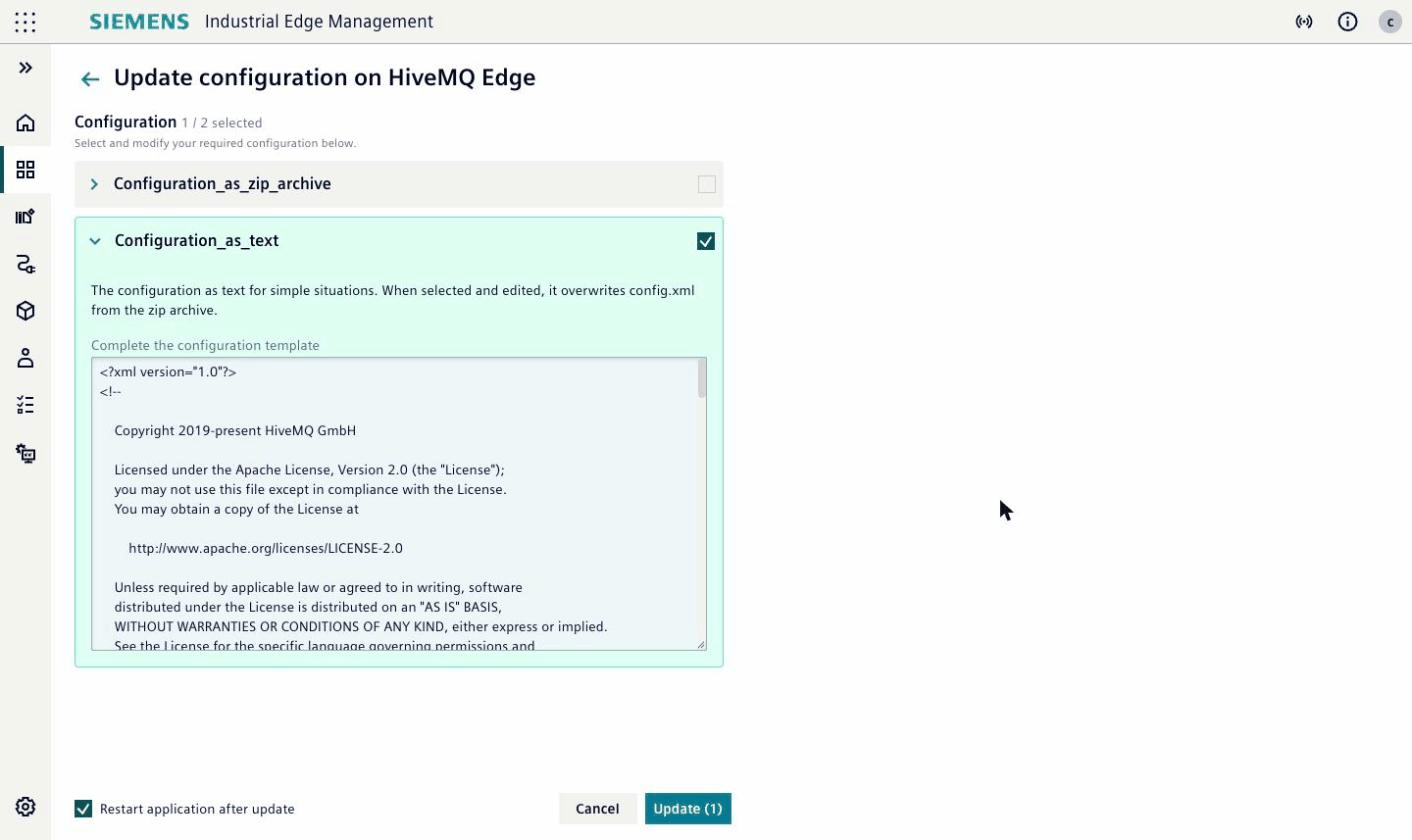
The application applies the text and restarts HiveMQ Edge.
The restart takes about one to two minutes.
HiveMQ Edge then runs the adapter.
The adapter alone needs no restart, and HiveMQ Edge restarts itself for the changed login.
If you select the restart, both changes are certain to take effect.
An MQTT client that subscribes to tutorial/temperature receives a random number between 15 and 25 every second.
Open the Console
-
In Industrial Edge Management, enable remote access to the device, and open the web interface of the device.
-
Select Apps, and click the tile HiveMQ Edge.
-
Log in with your user name and your password.
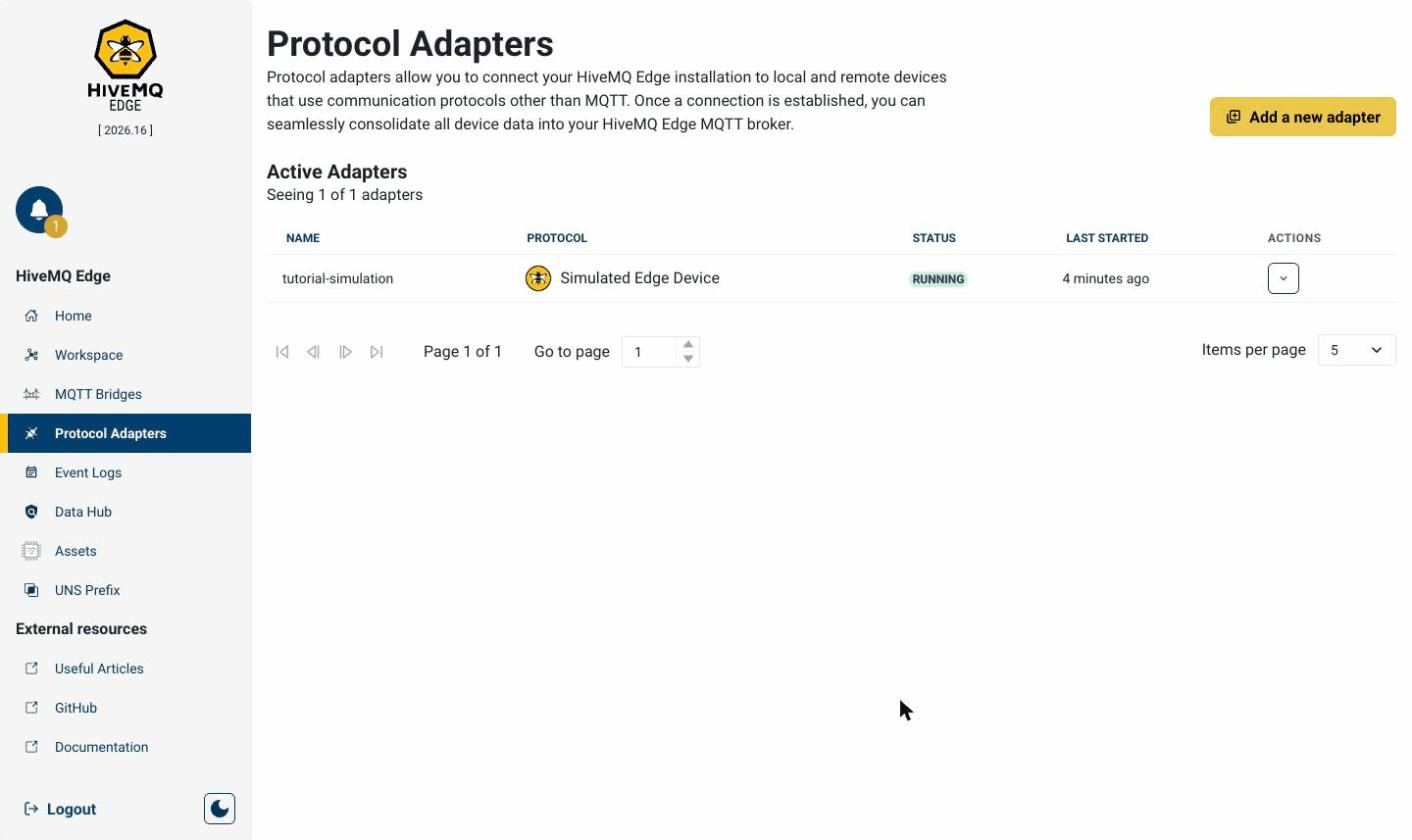
In the Console, select Protocol Adapters.
The list shows the adapter tutorial-simulation with the status RUNNING.
The status Running of the application in Industrial Edge Management means that the container of HiveMQ Edge runs. It does not mean that HiveMQ Edge works correctly. After each update, open the Console.
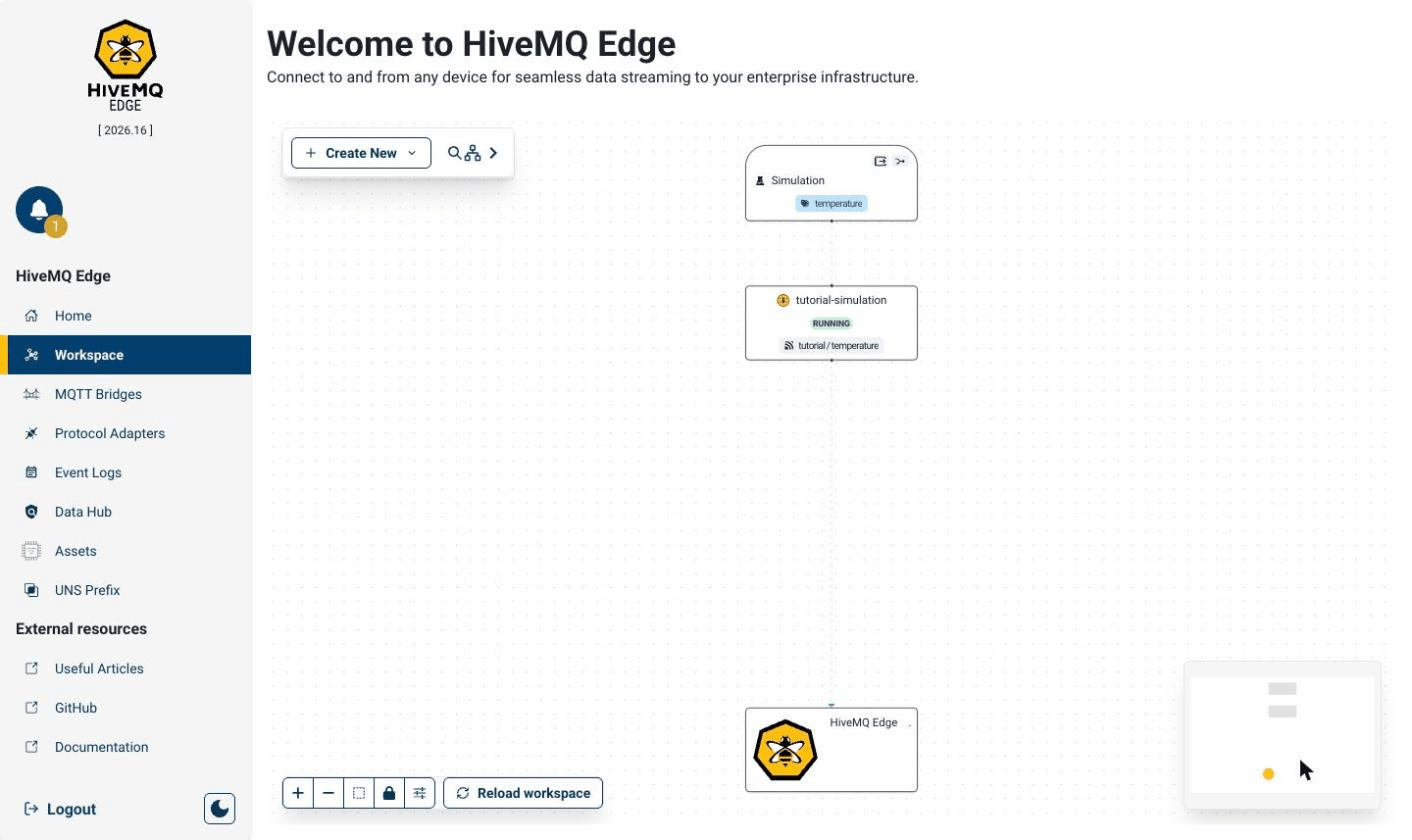
To see how the data flows, select Workspace.
The Workspace shows the tag temperature, the adapter, and the topic tutorial/temperature.
When a Restart Is Needed
Each update of the configuration offers Restart application after update. The following table shows when you need the restart:
| What You Send | Restart |
|---|---|
A changed adapter or bridge in |
Not needed. HiveMQ Edge applies the change within a few minutes. |
Another change in |
Not needed. HiveMQ Edge restarts itself. |
A new or changed certificate |
Select the restart. HiveMQ Edge usually reads certificates only when HiveMQ Edge starts (Paths, Volumes, and Settings). |
A license |
Select the restart. Some licensed features, for example, Data Hub, start only when HiveMQ Edge starts. |
If you are not sure |
Select the restart. The restart takes about one to two minutes. |
For more information, see Change the Configuration after the Installation.
Send a Configuration with Certificates
In this section, you send a configuration that consists of more than one file. A real setup connects to a central broker and needs certificates. For such a setup, you use the ZIP input.
A ZIP archive holds the whole configuration. After the application applies a ZIP archive, the device holds the files that the ZIP archive contains. The application removes every certificate that the ZIP archive does not contain. To change a file later, change the file, build the ZIP archive again with all the files, and send the ZIP archive.
You keep the files in one folder:
config.xml cert/edge-keystore.p12 cert/plant-truststore.p12
HiveMQ Edge reads a file in cert/ as /opt/hivemq/conf/cert/<file name>.
Your config.xml must name each key store and each trust store by that path, for example, /opt/hivemq/conf/cert/edge-keystore.p12.
To write the adapters and the bridges in config.xml, see the HiveMQ Edge documentation and Write config.xml.
-
On a command line, build the ZIP archive from the folder that holds the files:
zip site.zip config.xml cert/edge-keystore.p12 cert/plant-truststore.p12 -
On the page of the application, click the three dots at the end of the row of the device. Then click Update configuration.
-
Open the row
Configuration_as_zip_archive. -
Click Browse, and select
site.zip. -
Select the check box of the row.
-
Select Restart application after update.
-
Click Update.
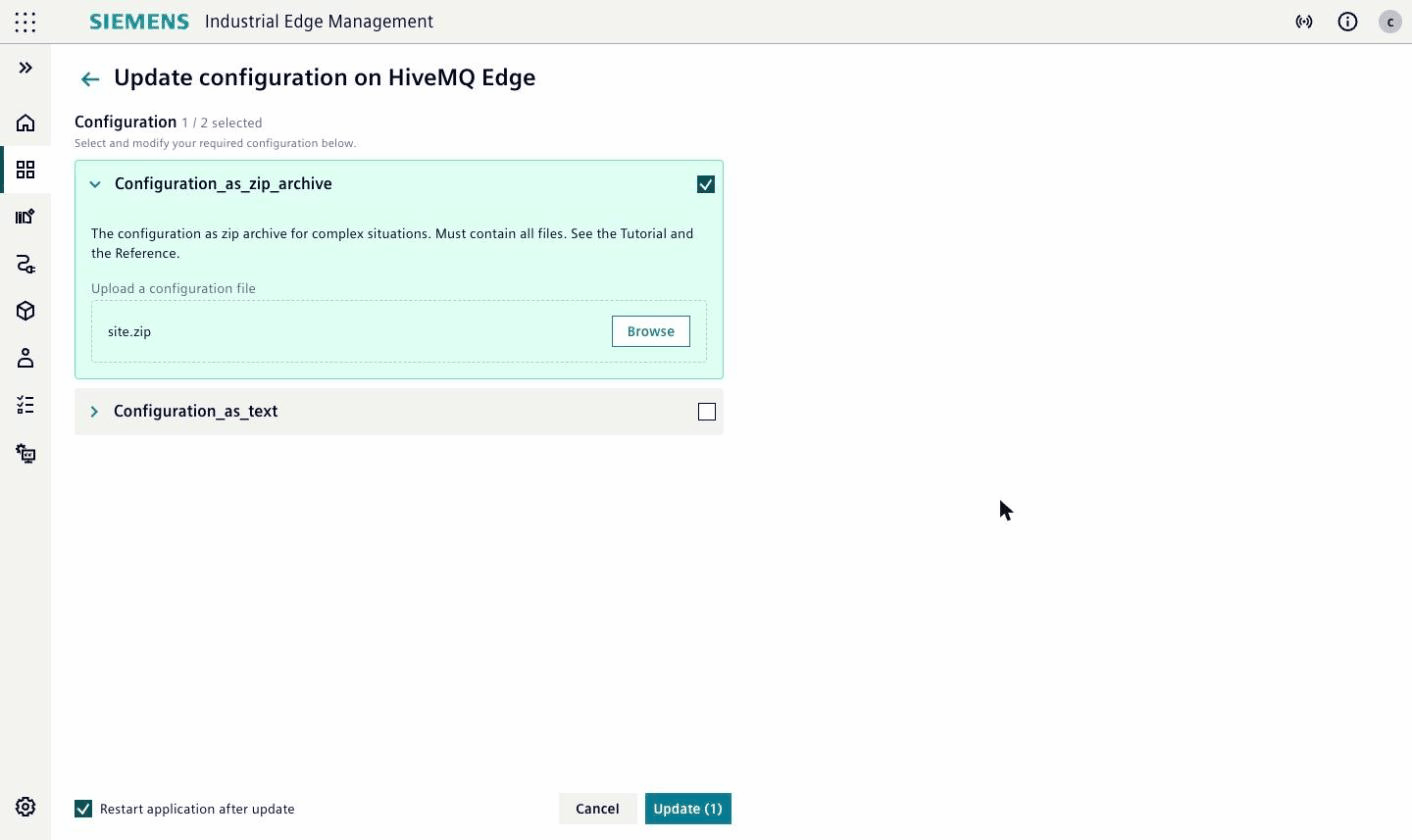
The application applies the ZIP archive and restarts HiveMQ Edge. The restart takes about one to two minutes.
If you send the text and a ZIP archive together, the application applies the ZIP archive first and then uses the text as config.xml.
Install a License
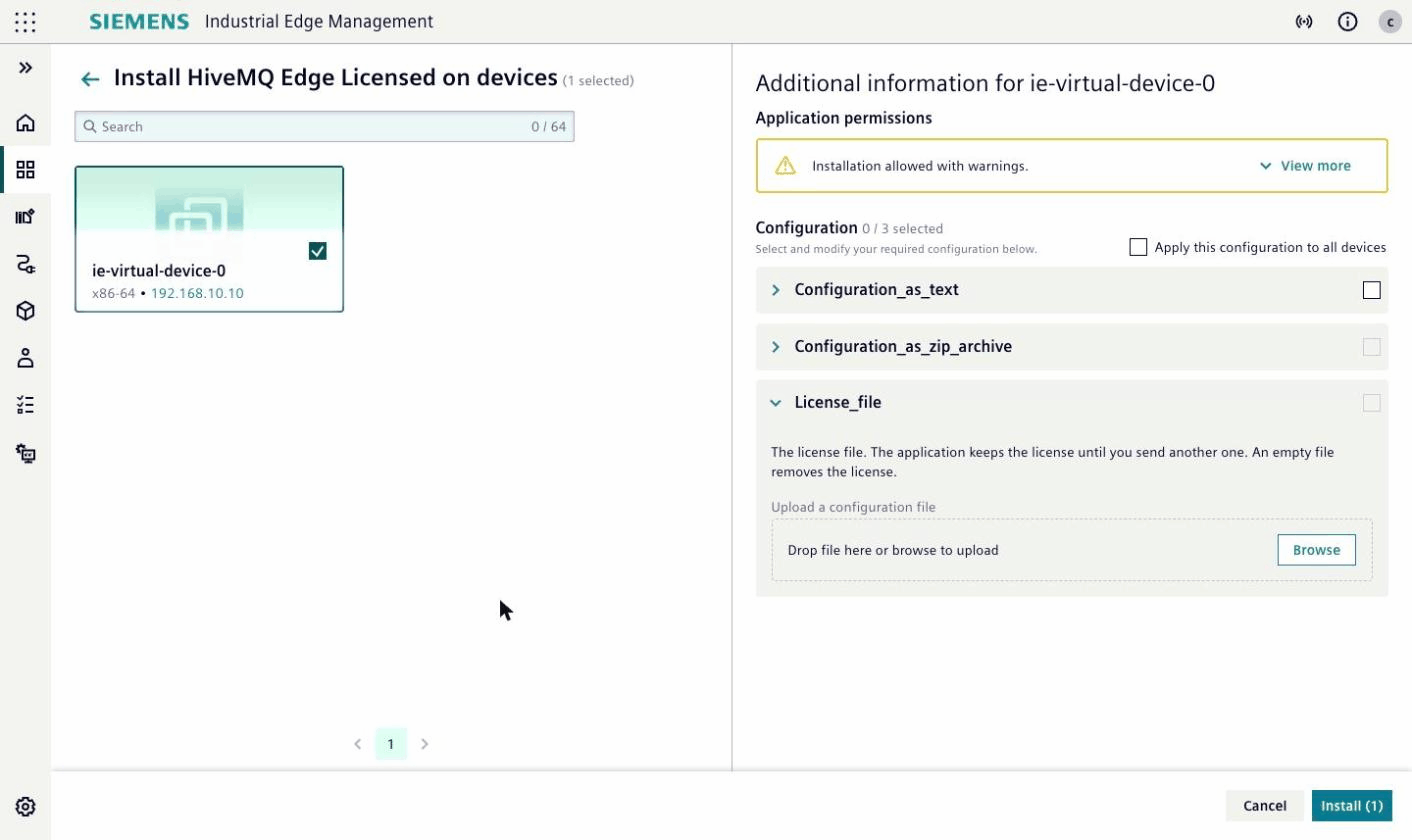
This section applies to the licensed product, HiveMQ Edge Licensed, only. In this section, you send a license file, so that HiveMQ Edge supports the licensed features.
The licensed product has one more input, License_file.
The name of the license file must end in .edgelic.
If necessary, rename the file before you send the file.
-
On the page of the application HiveMQ Edge Licensed, click the three dots at the end of the row of the device. Then click Update configuration.
-
Open the row
License_file. -
Click Browse, and select the license file.
-
Select the check box of the row.
-
Select Restart application after update.
-
Click Update.
The application keeps the license until you send another license. A ZIP archive does not remove the license. To remove the license, send an empty file through the same input, with a restart. For more information, see The License.
See What the Application Did
In this section, you find out whether the application applied what you sent.
Industrial Edge Management reports an update as completed when the files are on the device. The application applies the files after that moment. You see the result on the device.
-
In Industrial Edge Management, enable remote access to the device, and open the web interface of the device.
-
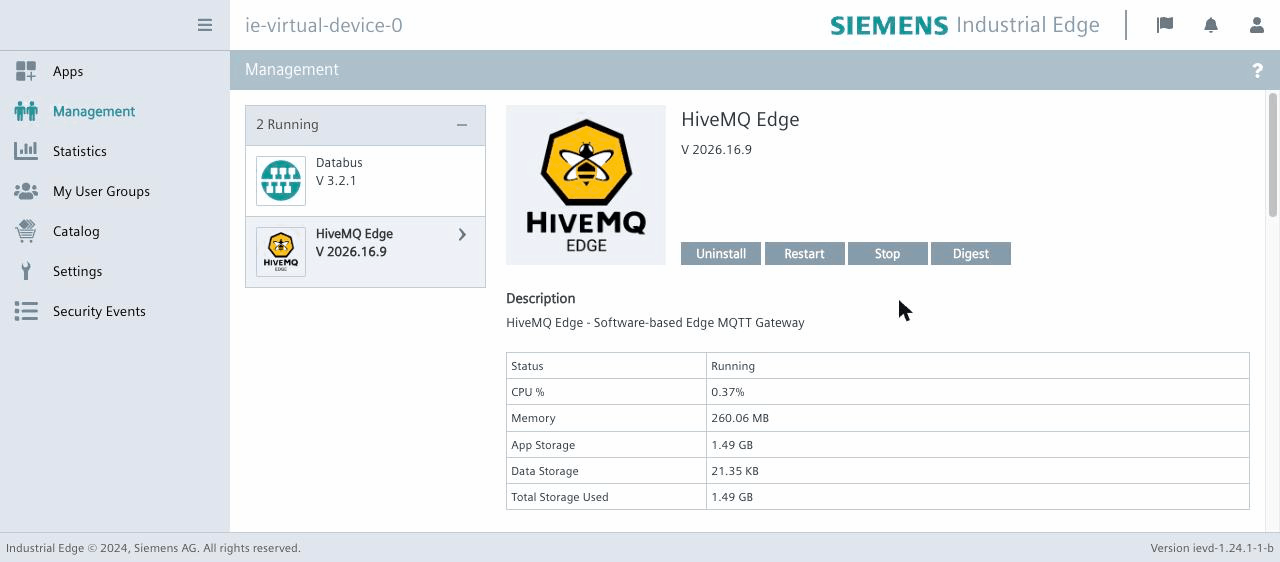
Under Management, select HiveMQ Edge.
-
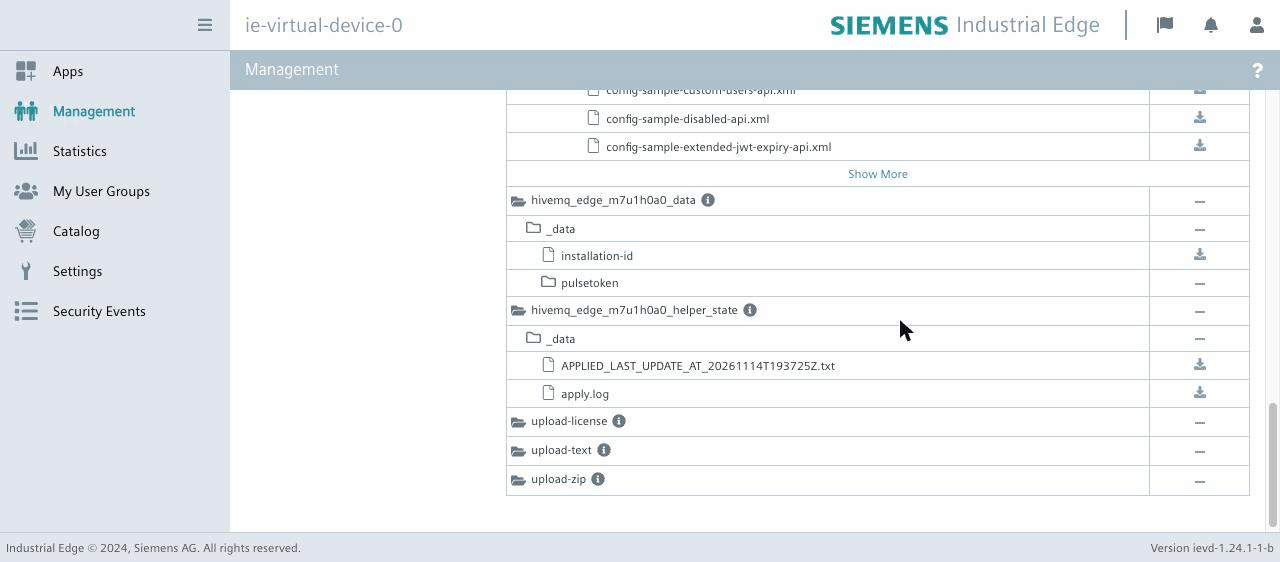
In the list of volumes, find the volume
hivemq_edge_m7u1h0a0_helper_state.
The volume holds one status file. The name of the status file is the result of the last installation or update:
| The Name Starts With | Meaning |
|---|---|
|
The application applied the upload |
|
The upload changed nothing. One cause is a ZIP archive that is identical to the ZIP archive that you sent before. Another cause is a text in which you did not delete every line of the notice at the top: the application ignores a text that starts with |
|
The application rejected the upload and changed nothing. The file says what was wrong and what to do. |
hivemq_edge_m7u1h0a0_helper_state.Where to Go Next
The Reference covers the following topics:
-
The files that a ZIP archive can contain, and the size limits (The ZIP Archive)
-
The changes that need a restart (Change the Configuration after the Installation)
-
The way to write
config.xml, the login to the Console, and configuration fragments (Write config.xml) -
Certificates (Certificates)
-
The license (The License)
-
An update to a new version of the application (Update to a New Version)
-
The status file and the logs (The Status File and the Logs)
-
Troubleshooting, for example, an installation that fails (Troubleshooting)
-
Limitations (Limitations)
Reference
This reference lists what you need to run HiveMQ Edge as an application on Siemens Industrial Edge:
-
The containers
-
The inputs and the ZIP archive
-
The rules by which the helper applies uploads
-
The paths, the volumes, and the settings
-
The installation, configuration changes, and
config.xml -
Certificates and the license
-
An update to a new version
-
The Console, the ports, and storage and memory
-
The status file and the logs
-
Troubleshooting
-
The limitations
The reference is for the person who installs the application, changes the configuration, or diagnoses the application. For the concepts, see the Tutorial.
The reference uses the following terms:
-
IEM: Industrial Edge Management, the Siemens system that installs and configures applications on devices.
-
Helper: The container of the application that applies uploads.
-
Console: The web interface of HiveMQ Edge.
-
Shipped file: A file that ships with the application, for example, the shipped
config.xml. The helper log calls a shipped file "packaged". -
Standard and licensed: The two products. Only the licensed product has an input for a license.
-
Batch: The uploads that arrive together. The helper applies or rejects a batch as a whole (How the Helper Applies Uploads).
-
Status file: A file on the volume of the helper. The name of the file is the result of the last installation or update (The Status File and the Logs).
What the Application Consists Of
The application contains the published hivemq/hivemq-edge image, unchanged, and a second container, the helper.
| Container | Image | User | Role |
|---|---|---|---|
|
|
Starts as root, continues as user 10000 |
Prepares the volumes, applies uploads, and reports that the helper is ready. Then applies uploads that arrive while HiveMQ Edge runs. |
|
|
User 10000 |
The gateway. Starts when the helper is ready. |
HiveMQ Edge waits for the helper at an installation and at a restart of the application.
After a reboot of the device, or when HiveMQ Edge shuts down, the device starts HiveMQ Edge without waiting for the helper.
In that case, HiveMQ Edge notices a new config.xml within about a minute after the helper applies the upload.
A new key store and a new activation token take effect at the next restart of the application.
Some features of a new license, for example, Data Hub, also start only at the next restart.
The helper needs root for one step. The device creates volumes and upload folders that root owns, and the helper gives the volumes and folders to user 10000. The helper changes to user 10000 before the helper reads an upload.
The following features are available in the licensed product only:
-
The connection to the HiveMQ Platform
-
Data Intelligence
-
Data Hub
-
MQTT persistence
The package runs on x86-64 processors only.
The Inputs
IEM calls the inputs app configurations. IEM shows one row per input under Configuration, on the install screen and under Update configuration. To open a row, click the row. An open row shows the description of the input and the control for the content.
IEM has two designs. This reference uses the names of the new design, as in the tutorial.
| Input | Control | Product | Purpose |
|---|---|---|---|
|
Text editor that IEM fills |
Both |
Small changes and experiments |
|
File upload |
Both |
A ZIP archive that holds the whole configuration (The ZIP Archive) |
|
File upload |
Licensed |
A license file. An empty file removes the license (The License). |
Every input is marked as secure, so IEM stores the input encrypted. According to the Siemens documentation, secure does not cover the transmission to the device or the storage on the device.
The Names of the Inputs
Identify an input by its name. IEM orders the inputs by an internal ID that changes with every version of the application. The order therefore differs between versions.
An Input Needs a Selected Check Box
IEM sends an input only if you select the check box of the input. The install screen and Update configuration behave in the same way:
-
When the screen opens, no check box is selected.
-
You cannot select the check box of a file upload before you attach a file. After you attach a file, select the check box. IEM does not select the check box for you.
-
The text input has its own check box. If the check box is not selected, IEM writes no text to the device.
-
The screen does not keep the selections of the previous update.
-
The button Install or Update shows the number of selected inputs. Update is available only if at least one check box is selected.
The Text in the Editor
The text in the editor belongs to IEM, not to the device. The editor shows an example configuration that IEM keeps as the template of the text input. The editor does not show the active configuration on the device.
The example starts with a notice of three lines:
# THIS IS AN EXAMPLE CONFIGURATION for config.xml. # TO USE IT, YOU MUST EDIT IT AND DELETE THESE LINES. # IF YOU DO NOT DELETE THESE LINES, IT WILL BE IGNORED.
To send the text, edit the text and delete every line of the notice. The first character of the text decides what the helper does with the text:
| The Text Starts With | What the Helper Does |
|---|---|
|
Installs the text as |
|
Ignores the text. The text still starts with the notice, so a selected check box without an edit changes nothing. |
Another character, or the text is empty |
Rejects the batch (How the Helper Applies Uploads) |
The description of the text input in IEM ends with the release whose example the editor shows, for example, "Default field text is for release 2026.16.11."
The ZIP Archive
A ZIP archive holds the whole configuration. The helper accepts only the following files from a ZIP archive:
| Path in the ZIP Archive | Destination | Notes |
|---|---|---|
|
|
Required, unless the text arrives in the same batch (How the Helper Applies Uploads) |
|
|
|
|
|
One level only. Any file name. |
|
|
One level only. A piece of configuration that |
|
|
The activation token for the HiveMQ Platform (licensed product) |
The following rules apply to a ZIP archive:
-
The paths are exact.
config.xmlmust be at the top level of the ZIP archive, not in a folder. If you compress a folder, the content is one level down, and the helper rejects the ZIP archive. -
The helper skips other files. The helper installs only the files in the table and writes one
WARNINGline per skipped file to the helper log. The helper still applies the rest of the ZIP archive. -
The helper never accepts a license from a ZIP archive. The helper skips a file with the suffix
.edgelicand every file in alicensefolder, at every position in the ZIP archive. Send a license throughLicense_file. -
The helper skips file names that start with a dot. The helper also skips folders below
cert/and belowfragment/. -
The helper skips the entries that archive tools add, without a warning:
__MACOSX/,.DS_Store, andThumbs.db. -
The helper rejects a ZIP archive with none of the accepted files, because such a ZIP archive changes nothing.
-
The helper rejects a ZIP archive in which an accepted file is encrypted or is a symbolic link.
-
The names are case-sensitive. The helper skips
Config.xmland a file inCert/. -
The helper rejects an upload that exceeds a size limit.
| Upload | Limit |
|---|---|
A ZIP archive, as uploaded |
5 MB |
The accepted files of one ZIP archive, unpacked, in total |
20 MB |
The text |
20 MB |
A license file |
1 MB |
Files that the helper skips do not count toward the 20 MB. The helper has no limit per file beyond the total.
What a ZIP Archive Removes
After the helper applies a ZIP archive, the device holds what the ZIP archive contains, plus the license:
-
The helper removes every file in
cert/and infragment/that the ZIP archive does not contain. -
If the ZIP archive contains no activation token, the helper removes the activation token.
-
If the ZIP archive contains no
logback.xml, the helper installs the shippedlogback.xml(Paths, Volumes, and Settings). -
The helper keeps the license, because the license has its own input.
To change one file, send the whole ZIP archive again with the changed file in it. If you leave out a file by mistake, the helper removes the file, and the helper log names every removed file (The Status File and the Logs). To restore the file, send the whole ZIP archive again.
How the Helper Applies Uploads
A Batch
The device writes each input into a separate folder. All uploads that are in the folders when the helper reads the folders are one batch. The helper applies a batch as a whole or rejects the batch as a whole.
When the Helper Applies a Batch
The helper treats a batch as complete when nothing in the upload folders changes for 30 seconds.
The helper has two phases. The start phase runs before HiveMQ Edge starts. The watch phase runs while HiveMQ Edge runs.
| Situation | Phase of the Helper That Applies the Batch |
|---|---|
Installation, or update with Restart application after update selected |
The start phase, before HiveMQ Edge starts |
Update with Restart application after update not selected |
The watch phase, while HiveMQ Edge runs |
The Text and a ZIP Archive Together
If a batch holds the text and a ZIP archive, the helper applies the ZIP archive first and then installs the text as config.xml.
The helper logs the following line:
the text and a zip arrived together: the zip is applied first, then the text as config.xml
The text replaces the config.xml of the ZIP archive, so the ZIP archive can lack config.xml in such a batch.
A text that still starts with the notice of the example does not count.
The helper ignores that text (The Inputs), and the ZIP archive must then contain config.xml.
A text that starts with neither < nor # causes the helper to reject the batch, and the ZIP archive with it.
The helper applies a license in the batch together with the other uploads.
The helper rejects a license in a rejected batch together with the batch.
What Each Input Does
| Input | Installs | Removes |
|---|---|---|
ZIP archive |
Every accepted file that the ZIP archive contains. If the ZIP archive contains no |
What the ZIP archive does not contain (The ZIP Archive) |
Text |
|
Nothing |
License |
The license file |
Every other |
License, empty file |
Nothing |
Every |
What the Helper Tests
Before the helper changes anything, the helper tests the following conditions:
-
Each upload is within its size limit (The ZIP Archive).
-
A ZIP archive is readable as a ZIP archive.
-
No accepted file in a ZIP archive is encrypted or is a symbolic link.
-
A ZIP archive unpacks to no more than the limit.
-
A ZIP archive contains at least one accepted file.
-
A ZIP archive contains
config.xml, unless an edited text arrives in the same batch. -
The text starts with
<or with#(The Inputs). -
The name of a license file that is not empty has the suffix
.edgelic.
What the Helper Does Not Test
Apart from the first character of the text, the helper does not check the content of a file:
-
The helper does not parse
config.xmlorlogback.xml. -
The helper does not test that
config.xmlandlogback.xmlare XML. -
The helper does not test that
logback.xml, or theconfig.xmlof a ZIP archive, has content. -
The helper does not check the content of a key store, a fragment, or the activation token.
HiveMQ Edge decides whether a file is usable, and says so in the HiveMQ Edge log (The Status File and the Logs).
A config.xml that includes fragments is not necessarily XML before HiveMQ Edge inserts the fragments.
"Applied" therefore means that the files are on the device.
When a config.xml That HiveMQ Edge Cannot Use Arrives |
What Happens |
|---|---|
Without a restart, while HiveMQ Edge runs |
The helper installs the file and reports the batch as applied. Within about a minute, HiveMQ Edge rejects the file, logs |
With a restart, at an installation, or at a later start |
HiveMQ Edge does not run with the file. Send a corrected configuration with a restart. |
Check a configuration before you send the configuration (Write config.xml).
A Rejected Batch
If a batch fails a test, the helper does the following:
-
The helper changes nothing.
-
The helper deletes the uploads of the batch.
-
The helper writes one line that starts with
REJECTEDper fault to the helper log. -
The helper writes a status file whose name starts with
REJECTED(The Status File and the Logs).
| Rejected Batch | HiveMQ Edge |
|---|---|
An update |
Continues to run, or starts, with the active configuration |
An installation |
Does not start, because HiveMQ Edge has no configuration to keep. IEM reports the installation as failed. |
An installation is the first start on a new configuration volume. After an installation has its configuration, every later rejection is a rejected update and does not stop HiveMQ Edge.
IEM reports an update job as completed when the files are on the device. The helper processes the files after that moment. IEM reports the job as completed even if the helper rejects the files. For an installation, IEM waits until the application starts. IEM therefore reports a rejected installation as failed.
The status Running of the application in IEM means that the container of HiveMQ Edge runs. It does not mean that HiveMQ Edge works correctly. If HiveMQ Edge cannot start with a configuration, IEM still shows Running while the device starts HiveMQ Edge again and again. After each update, open the Console.
A Rejected Installation
The helper writes the REJECTED lines and the status file REJECTED_INSTALL_AT_<time>_README.txt.
The helper then logs the installation was rejected; ending with an error so that the device reports it as failed and ends with an error.
The helper does not wait for a corrected input.
HiveMQ Edge never starts.
Look for the result in IEM first:
-
The install job shows Executing for several minutes. During that time, you cannot correct anything.
-
The job then changes to Failed, typically with the message "Unable to start application".
-
Sometimes, the device does not list the application during the attempt or afterward. In that case, you cannot read the status file or the helper log on the device.
The cause of the message is an upload that the helper rejects.
To recover, do the following:
-
In IEM, select Job Status in the menu on the left.
-
On the failed install job, click Rollback.
-
Wait for the message "Rollback completed for failed install job."
-
Install the application again with a corrected upload, or with none.
Without the rollback, IEM skips a new installation of the same version. The message is "Installation job already exists in 'failed' state for 'HiveMQ Edge' version - '', please rollback old job and submit again". You cannot use Update configuration instead, because IEM does not offer Update configuration for an application whose installation is not finished.
The rollback takes a few minutes. A failed installation followed by a rollback removes the volumes of the application. A later installation therefore starts on new volumes.
The Helper Deletes Each Processed Upload
The helper deletes each upload after the helper processes the upload. The device writes an input only when you send the input. The device does not write an input again at a restart or at an update to a new version. The volumes hold the active files.
Paths, Volumes, and Settings
Volumes
The volume names are fixed. The names do not depend on the product, so the standard product and the licensed product use the same three volumes.
| Volume | Mount Point | Contents |
|---|---|---|
|
|
|
|
|
Queues, retained messages, MQTT persistence, |
|
|
The status file, |
All three volumes remain at a restart and at an update to a new version. For an update from a version before 2026.16, see Update to a New Version. If you uninstall the application, the device removes all three volumes. A failed installation followed by a rollback also removes all three volumes (How the Helper Applies Uploads).
The web interface of the device lists every file on the three volumes, with a download button per file.
To get the active configuration, download config.xml from the volume hivemq_edge_m7u1h0a0_configuration.
Anyone with access to the web interface of the device can download config.xml and the key stores.
config.xml contains the passwords of the key stores.
|
Paths inside the HiveMQ Edge Container
| Path | Persistent | Contents |
|---|---|---|
|
Yes |
The active configuration |
|
Yes |
The active logging configuration |
|
Yes |
Key stores and trust stores |
|
Yes |
Fragments |
|
Yes |
The license (licensed product) |
|
Yes |
Queues, persistence, |
|
No |
Log files. A new container starts with an empty log folder. |
|
Part of the image |
Commercial modules |
Every file that you supply is below /opt/hivemq/conf, except the activation token.
HiveMQ Edge expects the activation token in the data folder.
Settings of the HiveMQ Edge Container
| Variable | Value | Effect |
|---|---|---|
|
|
The Console cannot write |
|
|
HiveMQ Edge reads the license from the persistent volume |
|
|
Every 60 seconds, HiveMQ Edge checks whether |
What HiveMQ Edge Does with a Changed File
| Change | What HiveMQ Edge Does |
|---|---|
An adapter or a bridge that you add, change, or remove |
Applies the change while HiveMQ Edge runs. No restart. |
Another change to |
Logs |
A |
Logs |
A fragment that |
Logs |
HiveMQ Edge reads key stores and trust stores when HiveMQ Edge starts.
If a bridge uses a key store or a trust store that changes, HiveMQ Edge can log Restarting because a required file was updated and shut down.
To make the restart certain, send a key store or a trust store with a restart.
HiveMQ Edge reads the activation token for the HiveMQ Platform only once, when HiveMQ Edge starts.
The Shipped logback.xml
The shipped logback.xml is the logback.xml of the HiveMQ Edge image plus one line:
<logger name="com.hivemq.configuration.reader.ConfigFileWatcher" level="ERROR"/>Without the line, HiveMQ Edge writes the warning No fragment found, checking the full config, only used for testing at every check, 1,440 times a day.
The line keeps the errors of the watcher and drops the other warnings of the watcher.
A logback.xml that you send does not have the line unless you add the line.
At the start, the helper replaces a logback.xml that is identical to the logback.xml of the HiveMQ Edge image with the shipped logback.xml.
The helper leaves every other logback.xml unchanged.
Install the Application
Get the Application
You get the application from the Siemens Digital Exchange, the marketplace for Industrial Edge.
| Product | App ID | Name in IEM |
|---|---|---|
Standard |
|
HiveMQ Edge |
Licensed |
|
HiveMQ Edge Licensed |
Install on a Device
-
In IEM, select Applications and then Device in the menu on the left.
-
Click the tile of the product, and click Install on device.
-
Select the check box of the device.
-
Under Configuration, supply the configuration, or send nothing. To send a ZIP archive, open the row
Configuration_as_zip_archive, click Browse, and select the ZIP archive. To send the text, open the rowConfiguration_as_text, edit the text in the editor, and delete every line of the notice at the top. Then select the check box of each row that you send. -
Click Install.
The configuration with which HiveMQ Edge starts depends on what you send:
| Sent at the Installation | Result | Status File |
|---|---|---|
Nothing |
The shipped |
|
The text |
The text as |
|
The text, with the notice of the example still at the top |
The shipped |
|
A ZIP archive |
The |
|
The text and a ZIP archive |
The key stores and the fragments of the ZIP archive, and the text as |
|
A faulty upload |
HiveMQ Edge does not start, and IEM reports the installation as failed (How the Helper Applies Uploads) |
|
The shipped config.xml has one MQTT listener on port 1883, the Console on port 8080 with the login closed, and no adapter or bridge.
You cannot install the two products side by side on one device.
Both products name their container hivemq-edge and publish the same ports.
The standard product and the licensed product use the same volume names. To move from one product to the other, you uninstall the first product. The device then removes the volumes (Paths, Volumes, and Settings), so the second product starts on new volumes.
Change the Configuration after the Installation
-
In IEM, open the page of the application: select Applications and then Device, and click the tile of the product.
-
Click the three dots at the end of the row of the device. Then click Update configuration.
-
To send a ZIP archive, open the row
Configuration_as_zip_archive, click Browse, and select the ZIP archive. To send the text, open the rowConfiguration_as_text, edit the text in the editor, and delete every line of the notice at the top. Then select the check box of each row that you send. -
Select Restart application after update, or leave the check box not selected.
-
Click Update.
-
After a few minutes, read the name of the status file on the device (The Status File and the Logs).
| Restart application after update | Effect |
|---|---|
Selected |
The device writes the files, stops the application, and starts the application again. The helper starts first, and HiveMQ Edge starts when the helper is ready. The time from Update to a started HiveMQ Edge is about one to two minutes. |
Not selected |
The helper applies the batch while HiveMQ Edge runs, within a few minutes after Update. After the helper applies the batch, HiveMQ Edge notices a new |
In this reference, "with a restart" means an update with Restart application after update selected.
After an update without a restart, the helper log and the status file name the changed files in two groups. The first group holds the files that HiveMQ Edge notices by itself. The second group holds the files that HiveMQ Edge reads only at the start. For the second group, restart the application from IEM:
-
Select Devices, and open the page of the device.
-
Click the three dots at the end of the row of the application.
-
Click Restart.
A license appears in neither group, although some licensed features, for example, Data Hub, start only after a restart (The License).
The following table shows the input for each change. Every ZIP archive holds the whole configuration, including the files that do not change (The ZIP Archive).
| Change | Input | Restart Needed |
|---|---|---|
Replace one certificate |
ZIP archive with the new file as |
Yes |
Add, change, or remove an adapter or a bridge |
ZIP archive with the changed |
No. A changed fragment makes HiveMQ Edge shut down, and the device starts HiveMQ Edge again (Paths, Volumes, and Settings). |
Move a device to a different site configuration |
ZIP archive |
Yes, if a key store or the activation token changes |
Remove a key store or a fragment |
ZIP archive without the key store or the fragment |
For a key store, yes |
Try a setting |
Text |
No |
Supply or replace the activation token for the HiveMQ Platform |
ZIP archive with |
Yes |
Remove the activation token |
ZIP archive without an activation token |
Yes |
Supply or replace the license |
License input |
Yes, for some licensed features, for example, Data Hub |
The text editor in IEM does not show the active configuration.
The editor shows the example that IEM keeps (The Inputs).
IEM has no knowledge of a config.xml that arrived in a ZIP archive.
If you send an edited text, the text that you send replaces config.xml exactly.
Write config.xml
config.xml is one XML document.
Listeners
The MQTT listener uses port 1883 inside the container.
<mqtt-listeners>
<tcp-listener>
<port>1883</port>
<bind-address>0.0.0.0</bind-address>
</tcp-listener>
</mqtt-listeners>The Console and the Login
The shipped configuration contains no user and closes the login:
<admin-api>
<listeners>
<http-listener>
<port>8080</port>
<bind-address>0.0.0.0</bind-address>
</http-listener>
</listeners>
<username-authentication>
<enabled>false</enabled>
</username-authentication>
</admin-api>
Every config.xml that you send must contain <username-authentication>.
Without that element, HiveMQ Edge opens the built-in account admin, whose password is publicly known, within about a minute, even if you select no restart.
Anyone who logs in with the account can read the passwords of your key stores.
|
To keep the login to the Console closed, keep <enabled>false</enabled>.
If <enabled> is false, the built-in account is closed.
The config.xml of version 2025.18 of the application defines the user admin with the publicly known password.
If you send a configuration from that version, you must remove that user.
A configuration from an older version of the application can lack <username-authentication>.
To open the login to the Console, set <enabled> to true and add a user source directly inside <admin-api>, beside <username-authentication>.
You must not use the user name and the password of the built-in account for your own user.
The user source is a <users> element or an <ldap> element:
<users>
    <user>
        <username>your-admin</username>
        <password>a-strong-password</password>
        <roles><role>admin</role></roles>
    </user>
</users>If <enabled> is true and the configuration has no user source, HiveMQ Edge does not run.
HiveMQ Edge logs that <users> is deprecated in favor of <username-roles-source>.
Use <users>.
HiveMQ Edge 2026.16 rejects <username-roles-source> at the schema validation.
Protocol Adapters
Each machine or group of machines has one block. The block contains the connection, the tags to read, and the MQTT topic for each tag.
Bridges
The element for bridges is <mqtt-bridges>.
The address, the connection settings, and the Transport Layer Security (TLS) block are inside <remote-broker>:
<mqtt-bridges>
    <mqtt-bridge>
        <id>to-central</id>
        <remote-broker>
            <host>broker.example.com</host>
            <port>8883</port>
            <mqtt>
                <client-id>hivemq-edge-plant-4</client-id>
                <clean-start>true</clean-start>
                <session-expiry>3600</session-expiry>
                <keep-alive>60</keep-alive>
            </mqtt>
            <tls>
                <enabled>true</enabled>
                <keystore>
                    <path>/opt/hivemq/conf/cert/edge-keystore.p12</path>
                    <password>...</password>
                    <private-key-password>...</private-key-password>
                </keystore>
                <truststore>
                    <path>/opt/hivemq/conf/cert/plant-truststore.p12</path>
                    <password>...</password>
                </truststore>
            </tls>
        </remote-broker>
        <forwarded-topics>
            <forwarded-topic>
                <filters>
                    <mqtt-topic-filter>plant/#</mqtt-topic-filter>
                </filters>
            </forwarded-topic>
        </forwarded-topics>
    </mqtt-bridge>
</mqtt-bridges>
<private-key-password> is required, even if the value equals the key store password.
MQTT Persistence
<persistence><mode>file-native</mode></persistence> needs a license.
Without a license, HiveMQ Edge does not run, and the device restarts HiveMQ Edge in a loop.
Fragments
A fragment is a file with a piece of the configuration.
config.xml includes the fragment with a placeholder.
Before HiveMQ Edge reads the configuration, HiveMQ Edge replaces the placeholder with the text of the file:
<protocol-adapters>
    ${FRAGMENT:/opt/hivemq/conf/fragment/line-4.xml}
    ${FRAGMENT:/opt/hivemq/conf/fragment/line-5.xml}
</protocol-adapters>
The following rules apply to fragments:
-
Put a fragment into a ZIP archive as
fragment/<file name>. The helper installs the fragment at/opt/hivemq/conf/fragment/<file name>. The placeholder names that full path. -
Write one placeholder per line. Two placeholders on one line do not work.
-
A fragment can contain placeholders for environment variables. HiveMQ Edge inserts fragments first.
-
If the file of a placeholder is missing, HiveMQ Edge rejects the configuration. The helper does not notice the missing file, so the name of the status file still starts with
APPLIED. If HiveMQ Edge runs, HiveMQ Edge keeps the active configuration. At the next start, HiveMQ Edge does not run. To recover, send a ZIP archive that contains every fragment thatconfig.xmlnames, with a restart. -
The helper installs fragments before
config.xml. -
A ZIP archive removes the fragments that the ZIP archive does not contain (The ZIP Archive).
Check a Configuration before the Upload
Apart from the first character of the text, the helper does not check the content of a file.
HiveMQ Edge checks config.xml against the HiveMQ Edge schema and rejects the file on a violation.
The schema is in the image:
docker run --rm --entrypoint sh hivemq/hivemq-edge:2026.16 -c 'cat /opt/hivemq/conf/config.xsd' > /tmp/config.xsd
xmllint --noout --schema /tmp/config.xsd config.xml
The schema accepts any content inside <protocol-adapters>.
HiveMQ Edge checks adapters at runtime.
An adapter block with errors therefore passes xmllint.
HiveMQ Edge can still reject the whole configuration because of such a block.
To check a config.xml with fragment placeholders, first insert the fragments.
For the full description of the configuration, see the HiveMQ Edge documentation.
Certificates
HiveMQ Edge reads key stores and trust stores as files from a path. HiveMQ Edge has no upload interface for key stores and trust stores, on any platform.
-
Produce a key store with the certificate and the private key of HiveMQ Edge. Produce a trust store with the certificate authority of the broker. Use the JKS format or the PKCS#12 format.
-
Put the key store and the trust store into a ZIP archive under
cert/. -
Name the key store and the trust store in
config.xmlas/opt/hivemq/conf/cert/<file name>.
Replace a Certificate
Send the ZIP archive again with the new file under the same name, with a restart.
The new key store must have the passwords that config.xml names.
If the passwords differ, change config.xml in the same ZIP archive.
Remove a Certificate
A ZIP archive removes every file in cert/ that the ZIP archive does not contain, key stores and trust stores alike (The ZIP Archive).
The License
Only the licensed product has a license input.
-
The file name must have the suffix
.edgelic. IEM keeps the name of the uploaded file, so, if necessary, rename the file before the upload. The helper rejects every other name, and logs the reason. -
A license file can be up to 1 MB. A license is a few kilobytes.
-
A new license replaces the previous license.
-
An empty file removes the license. The name of the empty file does not matter. Send the empty file with a restart.
-
Send a license with a restart. HiveMQ Edge watches the license folder and recognizes a new license immediately (
Using valid license). Some licensed features, for example, Data Hub, start only at the next start of HiveMQ Edge. -
A ZIP archive does not remove the license (The ZIP Archive).
-
The helper never accepts a license from a ZIP archive.
Update to a New Version
Get the new version from the Siemens Digital Exchange (Install the Application), and install the new version over the version that runs.
-
You cannot install the same version twice on one device. IEM reports the job as skipped.
-
The volumes remain. The volumes hold the following items:
-
The configuration
-
The certificates
-
The license
-
The message queues
-
The enrollment with the HiveMQ Platform
-
-
The device does not write the inputs again. The helper finds no upload and leaves the volumes unchanged. The status file stays unchanged.
-
logback.xmlon the volume stays thelogback.xmlof the previous version. -
According to the Siemens documentation, IEM deletes stored inputs that the new version does not declare.
Update from a Version before 2026.16
An update from a version before 2026.16 starts on empty volumes.
Versions before 2026.16 used volumes with other names (hivemq_configuration, hivemq_data), and the device does not rename a volume.
The message queues and the enrollment with the HiveMQ Platform do not carry over.
After such an update, send the configuration again as a ZIP archive.
The Console
The Console is reachable in two ways:
-
Through the reverse proxy of the device, at the entry of the application in the web interface of the device
-
Directly on port 58080
The Console shows the state of adapters, tags, and bridges.
The Console cannot change the configuration, because HIVEMQ_CONFIG_WRITEABLE is false.
The restriction is deliberate.
You supply the entire configuration as one unit through Industrial Edge Management.
Industrial Edge Management is therefore the single source of truth for the configuration.
A second place to change the configuration makes it unclear which configuration is the actual one.
The result is lost changes, or older changes that HiveMQ Edge applies again.
The import of device tags is the one exception: the import changes the configuration.
The exception is a defect of HiveMQ Edge.
The login to the Console is closed until you send a configuration that opens the login (Write config.xml).
Ports
| Container Port | Port on the Device | Purpose |
|---|---|---|
1883 |
51883 |
MQTT |
8883 |
58883 |
MQTT over TLS, if the configuration defines such a listener |
8080 |
58080, and through the reverse proxy |
Console and REST API |
The package attaches HiveMQ Edge to the proxy-redirect network of the device.
The reverse proxy uses that network, and other applications can join that network.
Storage and Memory
The package limits memory: 2,000 MB for HiveMQ Edge and 100 MB for the helper. The size limits for uploads (The ZIP Archive) follow from the 100 MB of the helper.
The application declares no storage limit. The device sets the limit. The default limits of a device are as follows:
"Limits": {
  "MaxInstalledApplications": 20,
  "MaxRunningApplications": 10,
  "MaxMemoryUsageInGB": 8.0,
  "MaxStorageUsageInGB": 20.0,
  "MaxCpuUsagePercentage": 100
}
The Status File and the Logs
The status file and the helper log are on the volume of the helper.
The web interface of the device lists the volumes of the application under Management.
The list shows every file by name, with a download button per file.
The files are under hivemq_edge_m7u1h0a0_helper_state/_data/.
To open the web interface of the device, do the following:
-
In IEM, select Devices, and open the page of the device.
-
Click Enable remote access.
-
Click Remote connect. If Remote connect reports that no tunnel exists, click Disable remote access, click Enable remote access again, and then click Remote connect.
The Status File
The name of the status file is the result of the last installation or update. You read the result in the list of files and do not need to download a file. After the first start of the application, the volume holds exactly one status file. The helper writes the new status file and then deletes the older ones.
<result>_<operation>_AT_<time>[_README].txt
| Part | Values |
|---|---|
Result |
|
Operation |
|
Time |
Coordinated Universal Time (UTC), in the format |
|
Present on |
| Name | Meaning |
|---|---|
|
The installation has its configuration, and the helper let HiveMQ Edge start. The helper also writes this name for an installation without an input. |
|
The input of the installation was equal to the files already in place, for example, a text equal to the shipped |
|
The helper rejected the installation. HiveMQ Edge does not start, and IEM reports the installation as failed (How the Helper Applies Uploads). In some cases, you cannot read this file on the device. |
|
The helper applied the last update |
|
The last update changed nothing, for example, a text that still starts with the notice of the example |
|
The helper rejected the last update. HiveMQ Edge keeps the active configuration. |
The text of the status file names the operation, the result, and the time, and then repeats the log lines of the batch. The following example shows a rejected installation:
HiveMQ Edge on Siemens Industrial Edge: result of the installation
Result: REJECTED
Time:   2026-11-12 17:56:20 UTC

batch: zip='site.zip'
REJECTED zip upload 'site.zip': has no config.xml; a zip holds the whole configuration and must bring one
the batch was rejected as a whole; nothing was changed
HiveMQ Edge is not started, and the device reports the installation as failed ("Unable to start application"). In Industrial Edge Management, roll back the failed install job, then install again with a corrected upload.

The full history is in apply.log, beside this file.
APPLIED says that the files are on the device.
APPLIED does not say that HiveMQ Edge accepted the files (How the Helper Applies Uploads).
A restart or an update to a new version without an upload leaves the status file unchanged.
The Helper Log
The helper writes every line to the container log of the helper and to apply.log.
Each line has a UTC time and the phase, [start] or [watch].
| Line | Meaning |
|---|---|
|
Start of the helper |
|
First start on this volume |
|
Start phase: The helper rejected an installation, now or at an earlier start. The helper ends with an error. |
|
The helper waits for 30 seconds without a change |
|
The uploads of this batch, by input |
|
The text starts with |
|
The text starts with another character, or the text is empty (The Inputs). The helper rejects the batch. |
|
The batch holds the text and a ZIP archive (How the Helper Applies Uploads) |
|
The license file arrived empty. The helper removes the license (The License). |
|
The effect of the batch on one file |
|
A file in a ZIP archive that is not an accepted file |
|
A license in a ZIP archive |
|
One fault. The helper rejects the batch. The next table lists the reasons. |
|
Follows the |
|
Follows a rejected update |
|
Follows a rejected installation |
|
End of a batch |
|
Watch phase only: |
|
Watch phase only: Key stores, the activation token (installed or removed), and a |
|
Start phase: The volume held the unchanged |
|
End of the start phase |
|
Start of the watch phase |
|
The helper finishes a batch that an interruption stopped |
|
Two uploads were present for one input, and the helper used the newer upload |
|
|
|
The helper was unable to replace the status file |
|
Watch phase only: An error such as a full disk |
The following table lists the reasons after REJECTED:
| Reason | Cause |
|---|---|
|
An upload over its size limit |
|
Not a ZIP archive, or a damaged ZIP archive |
|
An entry that the helper does not accept |
|
The unpacked total is over the limit |
|
A damaged entry, or a ZIP archive that contains more than the ZIP archive declares |
|
No accepted file, usually because the files are one level down |
|
A ZIP archive without |
|
A license with a wrong file name |
If you download the same file twice from the web interface of the device, the browser can return a stale copy. If a file looks unchanged, reload the page without the cache. The stale copy does not affect the name of the status file, because the name is part of the file list.
The Container Logs
The device keeps the output of both containers. The output of the HiveMQ Edge container is the HiveMQ Edge log. To download the container logs, do the following:
-
In the web interface of the device, open the Apps view.
-
Open the menu on the HiveMQ Edge tile.
-
Click Download Logs.
The device delivers a ZIP archive with one folder per container. Each folder holds the standard output and the standard error output of the container.
IEM offers log archives of the device.
In IEM, select Devices, open the page of the device, and select the tab Log files.
The tab lists one archive per day.
According to the Siemens documentation, you need the DeviceOwner role, or you must be the creator of the device.
Troubleshooting
A Change Had No Effect
Read the name of the status file:
-
REJECTED_...: The helper did not apply the batch. The status file names the fault. -
APPLIED_LAST_UPDATE_..., after an update without a restart: The files are in place. If the batch held a key store, an activation token, or a license, restart the application. If the batch heldconfig.xmlor a fragment, read the HiveMQ Edge log (The Status File and the Logs).Configuration reload rejectedmeans that HiveMQ Edge rejected the configuration and runs with the active configuration. -
UNCHANGED_...: The files that you sent equal the files on the device. Or you sent the text with the notice still at the top, and the application ignored the text. -
The time in the name is older than the update: The check box of the input was not selected, or the update is not on the device yet. The helper processes a batch 30 seconds after the last file arrived.
The Helper Rejected a ZIP Archive with "contains none of the accepted files"
The files are not at the top level of the ZIP archive. Compress the files, not the folder that holds the files.
The Helper Rejected an Upload with "more than the … allowed"
The upload is over its size limit (The ZIP Archive).
An Installation Stays at "Executing" and Then Fails with "Unable to start application"
The install job stays at Executing for several minutes before the job fails. The helper rejected the installation because of a faulty upload. In IEM, select Job Status, and click Rollback on the failed install job. Then install again with a corrected upload, or with none (How the Helper Applies Uploads).
IEM Skips a New Installation with "Installation job already exists in 'failed' state"
The failed install job has no rollback yet. Click Rollback on the failed install job, and then install again.
An Update Job Fails, and IEM Skips Every Later Update
An update with a restart fails if the helper fails at the start of the application. IEM shows the update job as Failed and the application as Stopped. IEM skips every later update until the failed job has a rollback. In IEM, select Job Status, and click Rollback on the failed update job. The rollback changes nothing on the device. Then send a ZIP archive with the whole configuration, with Restart application after update selected.
The Login to the Console Is Open, or the Configuration Is Not the One That You Sent
If the login is open with the built-in account, the active config.xml lacks <username-authentication> (Write config.xml).
A possible cause is a text or a ZIP archive whose config.xml does not contain the element.
Send the intended configuration.
The Application Restarts in a Loop
HiveMQ Edge rejects its config.xml.
The HiveMQ Edge log names the element and the line.
Frequent causes are a schema violation, a missing fragment, and MQTT persistence without a license.
Send a corrected configuration with a restart.
The helper continues to run during the loop and applies the corrected configuration.
The Application Does Not Start after an Update
If the helper cannot finish its start phase, the helper does not become ready, and HiveMQ Edge does not start. The container log of the helper shows the cause (The Status File and the Logs).
You Cannot Log In to the Console
The login to the Console is closed in the shipped configuration (Write config.xml).
The Console Rejects a Change
HIVEMQ_CONFIG_WRITEABLE is false, so the Console cannot write the configuration (The Console).
The Bridge Does Not Connect with TLS
The causes are as follows:
-
The path in
config.xmldiffers from the file name in the ZIP archive. -
A password is wrong.
-
The trust store lacks the certificate authority of the broker.
The HiveMQ Edge log shows which cause applies.
A License Has No Effect
The causes are as follows:
-
The file name does not have the suffix
.edgelic. The status file names this fault. -
You sent the license without a restart (The License).
-
The product is the standard product, which has no license input.
HiveMQ Edge Does Not Start after You Sent an Activation Token
HiveMQ Edge cannot use the activation token on the device, or cannot reach the HiveMQ Platform. The log of HiveMQ Edge shows one of the following:
-
"Configured pulse connection string is not valid": The activation token is not valid.
-
"blocking the Edge startup", repeated: HiveMQ Edge waits for the HiveMQ Platform. The HiveMQ Platform is unreachable, or does not accept the activation token.
The device does not restart HiveMQ Edge in either case.
-
If the HiveMQ Platform was unreachable, restart the application when the HiveMQ Platform is reachable.
-
Otherwise, send a ZIP archive with a correct activation token, with a restart.
-
To run HiveMQ Edge without the HiveMQ Platform, send a ZIP archive without an activation token, with a restart.
The ZIP archive must contain every other file that you want to keep (The ZIP Archive). The helper does not check the content of the activation token.
Limitations
-
You make every change per device. No mechanism sends one change to many devices.
-
A ZIP archive replaces the whole configuration. To change one key store or one fragment, you send the whole ZIP archive again.
-
Uploads have size limits (The ZIP Archive).
-
A change to a key store, a trust store, or the activation token takes effect at a restart. Some features of a new license, for example, Data Hub, also start only at a restart.
-
A change to
config.xmltakes effect without a restart, within about a minute after the helper applies the change. -
HiveMQ Edge can shut down although you selected no restart. If HiveMQ Edge cannot apply a
config.xmlchange while HiveMQ Edge runs, HiveMQ Edge shuts down, and the device starts HiveMQ Edge again. A changed fragment has the same effect, and so can a changed key store or trust store of a bridge. -
IEM does not report a rejected update, and the application does not report into IEM. The status file on the device reports a rejected update.
-
Apart from the first character of the text, the helper does not check the content of a file. "Applied" means that the files are on the device. HiveMQ Edge can still reject the files.
-
A rejected installation does not start HiveMQ Edge. IEM reports the installation as failed with "Unable to start application", without the cause, several minutes after you click Install. You must roll back the failed job before a new installation.
-
The application has no high availability. One instance runs per device, with storage on that device.
-
The package runs on x86-64 processors only.
-
You cannot install the same version twice on one device.
-
The two products cannot run on one device at the same time.