Deviations
A deviation is governed traffic that does not match the namespace definition you entered for its tag or asset in Contextualize. Each connected broker detects deviations in its own traffic and reports these events to the platform.
Deviations help you track what is happening across your Unified Namespace.
| The Analyze view has two tabs: Data Health and Deviations. This page describes the Deviations tab. For the Data Health tab, see Data Health. |
Review Deviations per Broker
Deviations are detected on tags and assets that carry payloads, and are listed per broker, so you can see exactly where a governed stream drifts from its definition.
-
Use the broker selector to choose the broker whose events you want to review.
-
The Deviations tab then lists every deviation detected on the selected broker’s traffic for you to inspect.
Use the filter to narrow the list. Use the Active and Ignored toggle to switch between current deviations and deviations that you previously ignored.
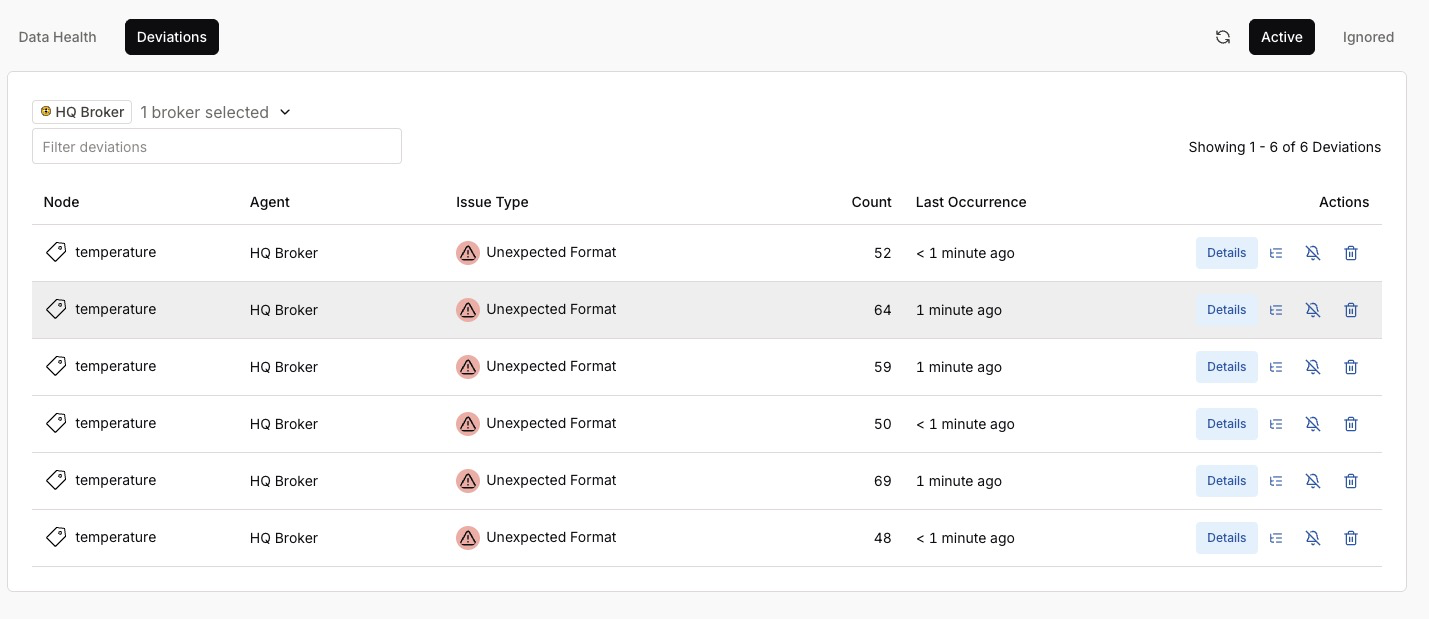
Each row describes one deviation:
| Column | Description |
|---|---|
Node |
The tag or asset whose traffic deviates. For example, a |
Agent |
The connected broker that detected and reported the deviation. |
Issue Type |
The kind of deviation, such as Unexpected Format. See Deviation Types. |
Count |
The number of times the deviation occurred. |
Last Occurrence |
The time when the broker last observed the deviation. |
Actions |
Open the deviation Details, view the tag or asset in the namespace, ignore the deviation, or remove the deviation. |
| In the Agent column, "agent" refers to the broker that reports the deviation, not to an AI agent in Act. |
Inspect a Deviation
To open the Deviation Details view, click Details on a deviation. The view shows the context of the deviation and the payloads that caused it:
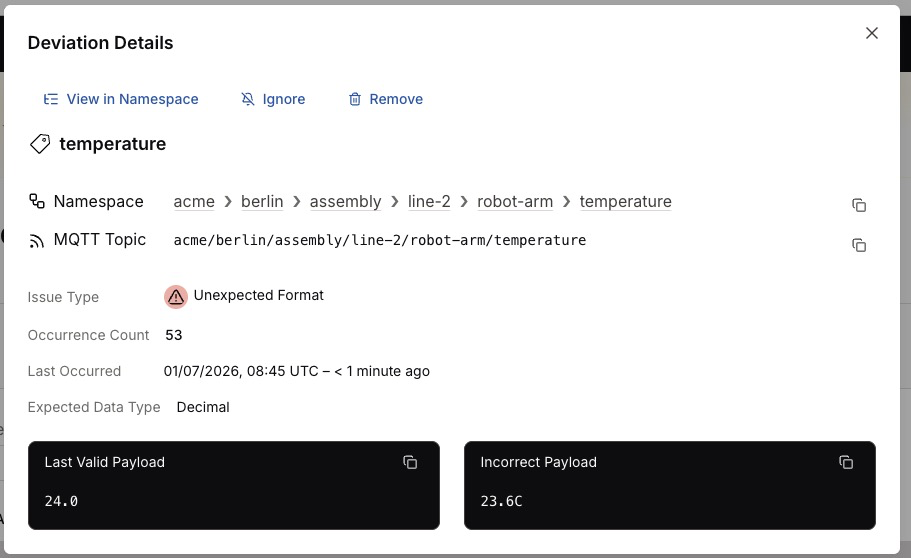
| Field | Description |
|---|---|
Namespace |
The breadcrumb path of the tag or asset. For example, |
MQTT Topic |
The full MQTT topic that carries the deviating traffic. |
Issue Type |
The type of deviation. See Deviation Types. |
Occurrence Count |
The number of times the deviation occurred. |
Last Occurred |
The time when the broker last observed the deviation. |
Expected Data Type |
The data type the tag or asset expects. For example, |
Last Valid Payload |
The most recent payload that matched the definition. For example, |
Incorrect Payload |
The payload that triggered the deviation. For example, |
Comparing the Last Valid Payload with the Incorrect Payload shows the cause of the deviation.
In this example, the temperature tag expects a Decimal such as 24.0
The device sometimes sends a string with a unit character, such as 23.6C.
The string does not match the expected format, so the broker reports an Unexpected Format deviation.
The details view also provides View in Namespace (jump to the tag or asset), Ignore and Remove actions.
Ignore Deviations
Not every deviation needs action. When a deviation is expected or acceptable, you can ignore it so it no longer clutters the active list. For example, a legacy device you plan to migrate later.
-
To ignore a deviation, select Ignore on the deviation row or in its Details view.
-
Ignored deviations move out of the Active list. Switch the toggle from Active to Ignored to review everything you have suppressed.
Ignoring is remembered per tag or asset and deviation type. While an ignore is in place, matching deviations on that tag or asset are kept out of the active list.
To stop ignoring a deviation, open the Ignored list and delete it there. This removes the ignore rule, so if the same issue occurs again it is detected and shown as Active once more.
| Ignore suppresses a deviation while keeping a record of it, whereas Remove deletes an active deviation outright. A removed deviation is detected again if the underlying issue recurs. |
Deviation Types
Every deviation has one of the following types:
| Issue Type | Description |
|---|---|
Missing Field |
A field defined for the tag or asset in the namespace is not present in the payload. |
Unexpected Field |
The payload contains a field that is not defined for the tag or asset in the namespace. |
Unexpected Format |
A value does not match the expected data type or format. For example, a |