Define Namespace
The Namespace is the heart of Contextualize. It is where you build your Unified Namespace: a single, standardized model that describes how data is structured across your devices, brokers, and applications.
A well-defined namespace gives every consumer (dashboards, analytics, and AI agents) the same view of your data, so they all read it the same way. This guide walks you through building one from an empty namespace to a structured hierarchy.
What a Namespace Is
A namespace is a hierarchical model of your operation. Instead of leaving data spread across loosely related MQTT topics, you organize it into a tree of meaningful, addressable nodes (your enterprise, its sites, the areas and lines within them, and the assets and signals they produce).
Each node maps to a level in the MQTT topic structure, so the namespace and your live data stay aligned. As you build the tree, the namespace becomes the authoritative description of what your data means, not just where it flows.
A Single Declarative Model, Synced Everywhere
The namespace is a central piece of the HiveMQ Platform: it defines, in a declarative way, how your data is structured and what context surrounds it. You describe the intended structure, data types, the deviations to watch for, and the computations to perform - you do not script how each individual broker should behave.
The platform automatically synchronizes this declaration to every connected broker. Each broker then enforces the model locally, close to where the data is produced, tracking deviations and running computations according to the declaration.
There is no need to manually push or configure this information on individual brokers. The HiveMQ Platform keeps every connected broker in sync with the namespace as it evolves.
The ISA-95 Hierarchy
The namespace follows the ISA-95 standard, a widely adopted model for organizing industrial data from the enterprise down to individual signals.
Enterprise
└── Site
    └── Area
        └── Line
            ├── Asset
            │   ├── Tag
            │   └── Field
            └── Tag
                └── Field
The namespace is built from two kinds of nodes:
-
Organizational nodes give the namespace its structure: Enterprise, Site, Area, Line, Asset, and Folder.
-
Data nodes hold operational data: Tag, Assets, and Field.
| Node type | Description |
|---|---|
Enterprise |
The root of the namespace. Represents your entire organization and provides the top-level prefix for all data flows. |
Site |
A physical location or facility, such as a manufacturing plant in Berlin. A site can contain multiple areas. |
Area |
A logical subdivision of a site, such as a department, production zone, or process step. |
Line |
A production line that groups the equipment and processes performing a specific operation within an area. Lines enable aggregation of line-level KPIs such as throughput, downtime, or OEE. |
Asset |
An individual machine, device, or logical resource, together with its operational data and context. For example, a robotic welding arm with all its signals, status, events, and metadata. Assets are addressable via MQTT and made available to PLC-mapping in HiveMQ Edge. |
Folder |
An organizational container used to group related nodes for clarity, navigation, and governance (for example, grouping assets within a line). |
Tag |
A single data point, signal, or measurement, such as a sensor value or status flag. Tags are addressable via MQTT. |
Field |
An individual value within a payload, such as a key in a JSON message. Fields are the smallest structural element and are not directly addressable via MQTT. |
| The available node types provide the core elements required to build an ISA-95-compliant namespace. |
Although the console offers several node types, they all derive from three base types (Folder, Tag, and Field). The organizational node types (Enterprise, Site, Area, and Line) are specializations of Folder, and Asset is a specialization of Tag.
   ┌───────────┐          ┌───────────┐          ┌───────────┐
   │  Folder   │          │    Tag    │          │   Field   │
   └─────┬─────┘          └─────┬─────┘          └───────────┘
         │                      │
         ├── Enterprise         └── Asset
         ├── Site
         ├── Area
         └── Line
Because Enterprise, Site, Area, and Line are all folders, they share the same organizational behavior, and Asset inherits the data-carrying behavior of a Tag.
Start From an Empty Namespace
When you open Contextualize for the first time, the Namespace tab is empty and prompts you to create your root node. Every namespace begins with a single root, the Enterprise node, which represents your organization and anchors the entire hierarchy.
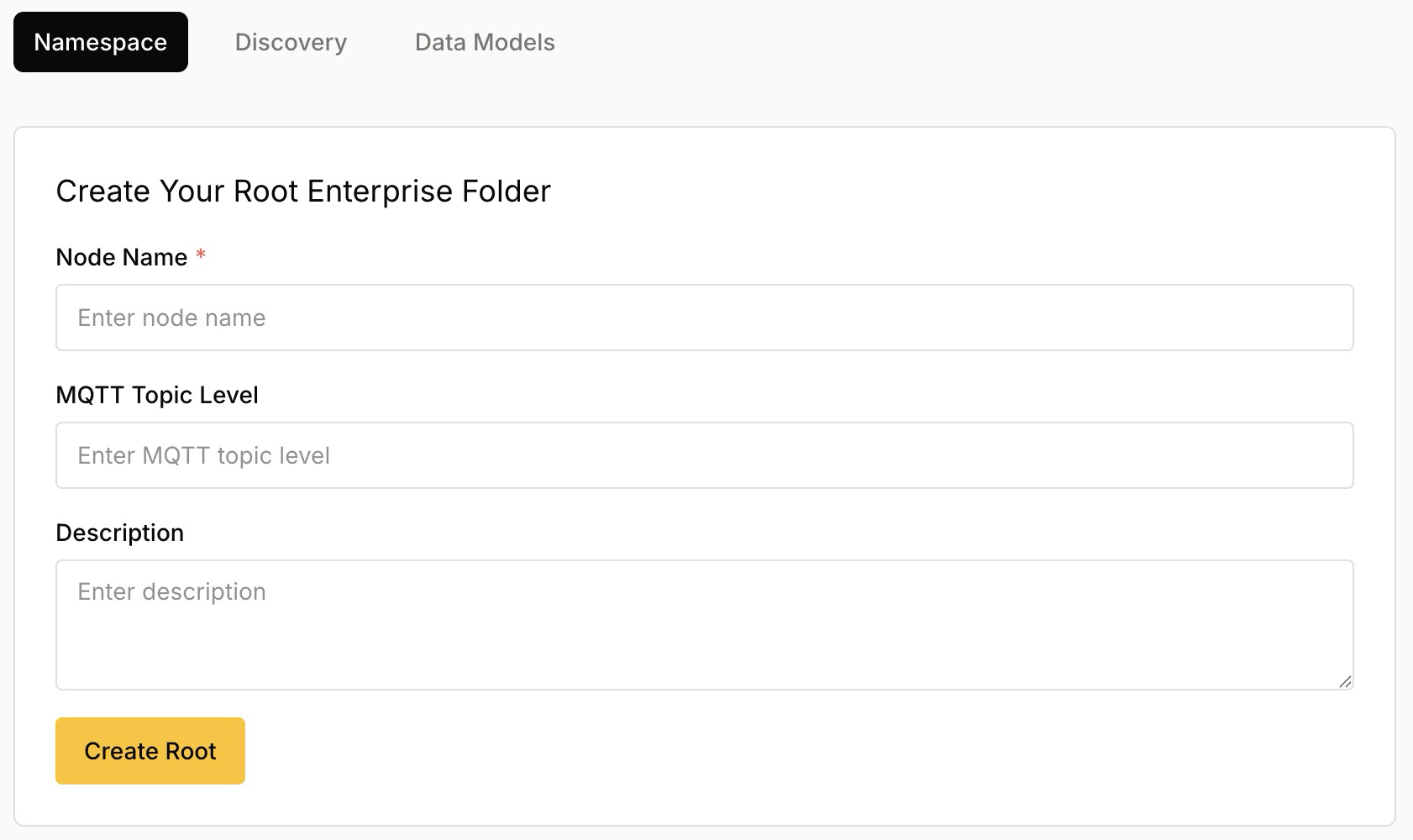
Create the Root Enterprise Node
On the Create Your Root Enterprise Folder form, provide the following details:
| Field | Description |
|---|---|
Node Name |
Required. A human-readable name for your organization, such as |
MQTT Topic Level |
The MQTT topic segment for this node, such as |
Description |
An optional plain-language note describing the node and its purpose. A clear description helps other users understand the model. |
To create the root and open your namespace, select Create Root.
|
The MQTT Topic Level defines how this node maps to your live MQTT data.
The full MQTT topic of any node is the chain of topic levels from the root down to that node.
For example, an Area node with the topic level |
Add Nodes to Build the Hierarchy
With the root in place, you extend the namespace by adding child nodes under any existing node.
-
Select the node you want to use as the parent, then select the + control next to its name to open the Add Node Type menu.
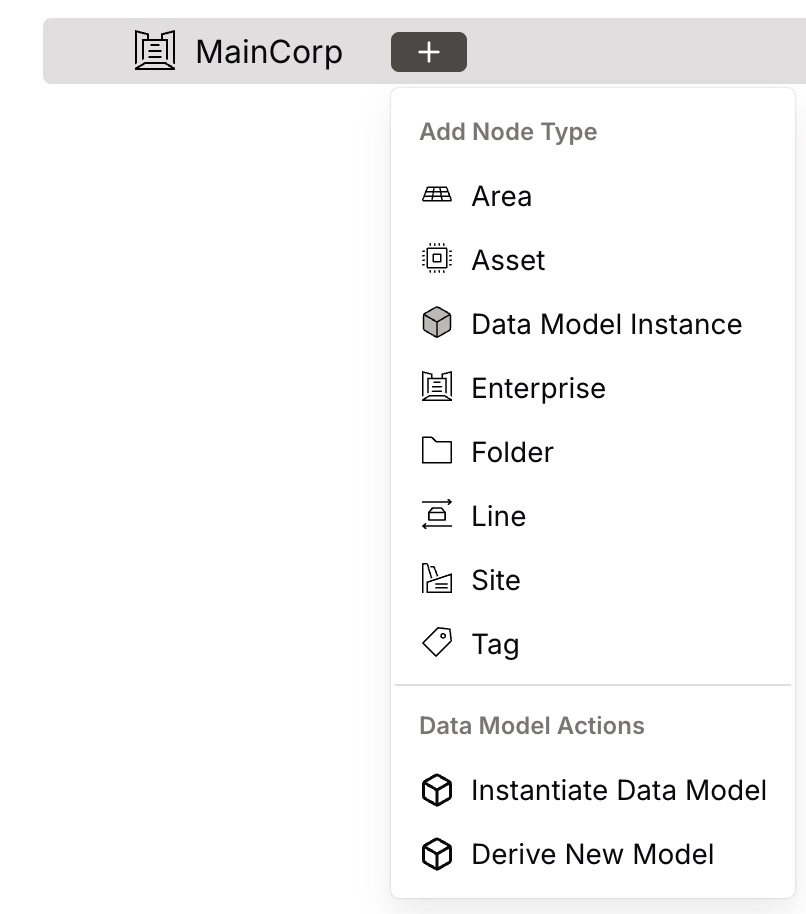
The menu lists the node types you can add (Area, Asset, Enterprise, Folder, Line, Site, and Tag) along with the Data Model Instance node type and the Data Model Actions described below.
-
Select the node type you want to add. A panel opens where you enter the node’s details. The available fields depend on the node type; the Node Name is always required.
-
To add the node, select Create Child Node.
As you add nodes, the namespace path updates to show each node’s location within the hierarchy. Repeat this process to build out your Site, Area, Line, Asset, Tag, and Field nodes until the namespace reflects your operation.
| A new node starts inactive. An inactive node stores no history, runs no computations, and does not count toward your bill. For details, see Node Activation. |
| The hierarchy is flexible. While the ISA-95 model describes the recommended Enterprise → Site → Area → Line ordering, you can add nodes in whatever structure best fits your operation — for example, an Area directly under the root. |
Add Data Model Nodes
The Add Node Type menu also connects your namespace to reusable Data Models:
-
Data Model Instance: adds a node based on an existing data model, so the node inherits a predefined structure.
-
Instantiate Data Model (under Data Model Actions): creates a node from a selected data model.
-
Derive New Model (under Data Model Actions): creates a new data model from the selected node, which you can then reuse elsewhere in the namespace.
For more information on creating and managing data models, see Data Models.
View and Edit Node Details
As you build the hierarchy, the namespace appears as a tree you can search, filter by node type, and expand. Whether you add nodes by hand or populate them from Discovery, every node (its data type, MQTT topic structure, and serialization format) is captured in the same place.
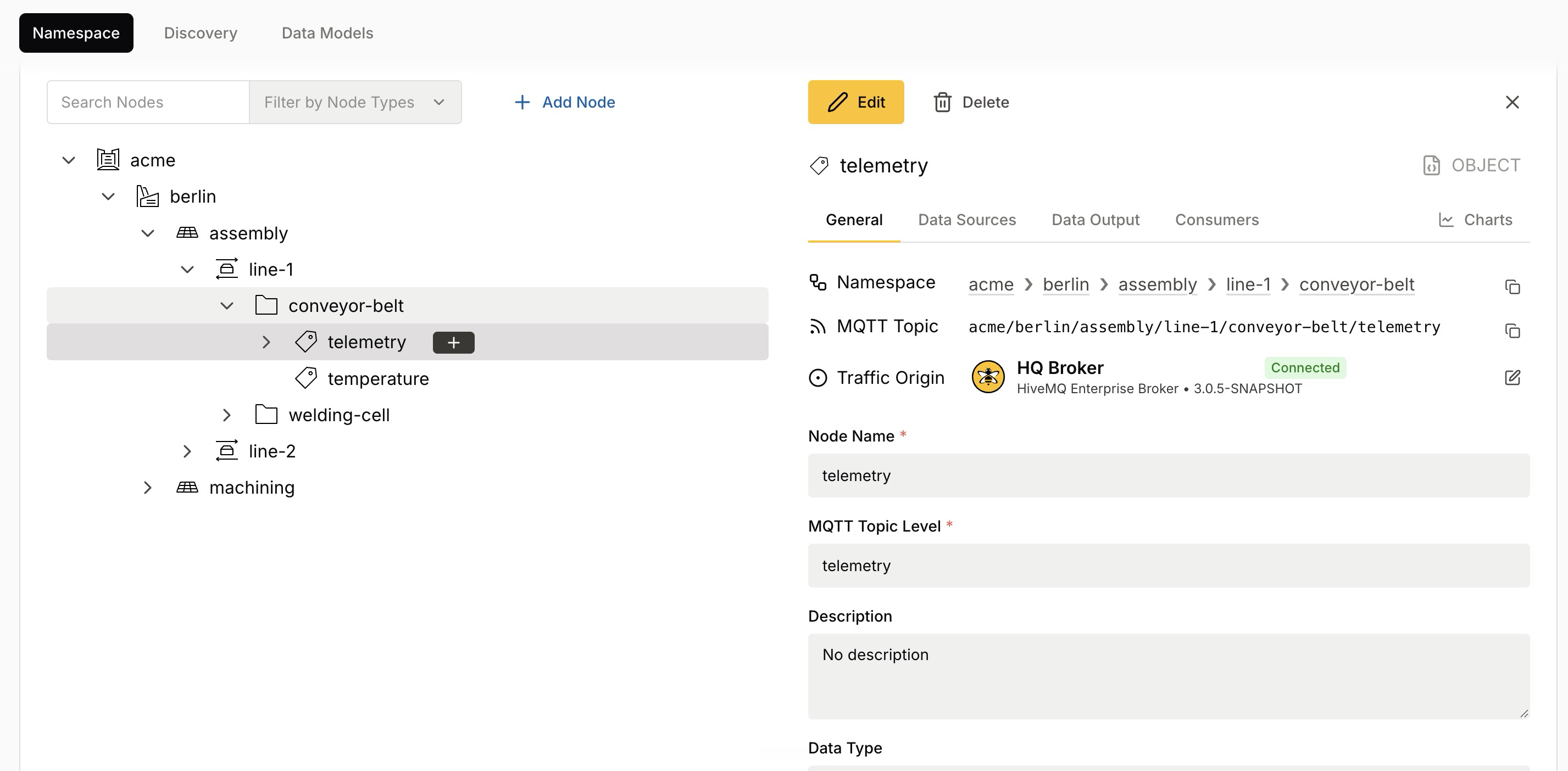
Select any node in the tree to open its detail panel. The panel organizes node information across several tabs: General, Data Sources, Data Output, Consumers, and Charts. The panel header also provides the Edit, Delete, and Activate actions.
To activate or deactivate the selected node, see Activate and Deactivate Nodes.
The General tab shows the core properties of the node:
| Field | Description |
|---|---|
Namespace |
The breadcrumb path showing where the node sits in the hierarchy, such as |
MQTT Topic |
The full MQTT topic the node maps to, such as |
Traffic Origin |
The connected broker that is expected to provide data for this node, and its connection status. For example, HQ Broker shown as Connected. A node can inherit the traffic origin from a parent node. In a data model instance, only the instance node can have its own traffic origin. |
Node Name |
The name of the node. |
MQTT Topic Level |
The MQTT topic segment for this node; the last element of the full MQTT topic path. |
Description |
An optional plain-language description of the node and its purpose. |
Data Type |
The data type expected for the node’s payloads, which can be simple (such as an Integer) or complex (such as an |
To change any of these values, select Edit.
Activate and Deactivate Nodes
A node stores no history, runs no computations, and reports no deviations until you activate it. An inactive node is still a full part of your namespace. You can create the node, rename it, move it in the hierarchy, and define computations that read from it.
Activation controls what runs on your connected broker. For an active node, the broker stores history, runs computations, and reports deviations. HiveMQ Data Intelligence bills the nodes that you activate, not the namespace that you define. For the effect on your bill, see Node Activation.
Check the Activation State of a Node
In the namespace tree, a check mark on the node icon indicates an active node. A node without a check mark is inactive.
The Activate action appears for a Folder, a Tag, and the root node of a data model instance. A Field follows its parent tag. The tree shows the state of the field, but the panel offers no action. For a node inside a data model instance, the action is visible but disabled because the instance is activated as a unit.
The card above the namespace tree shows how many billable nodes, computations, and links are active in the project.
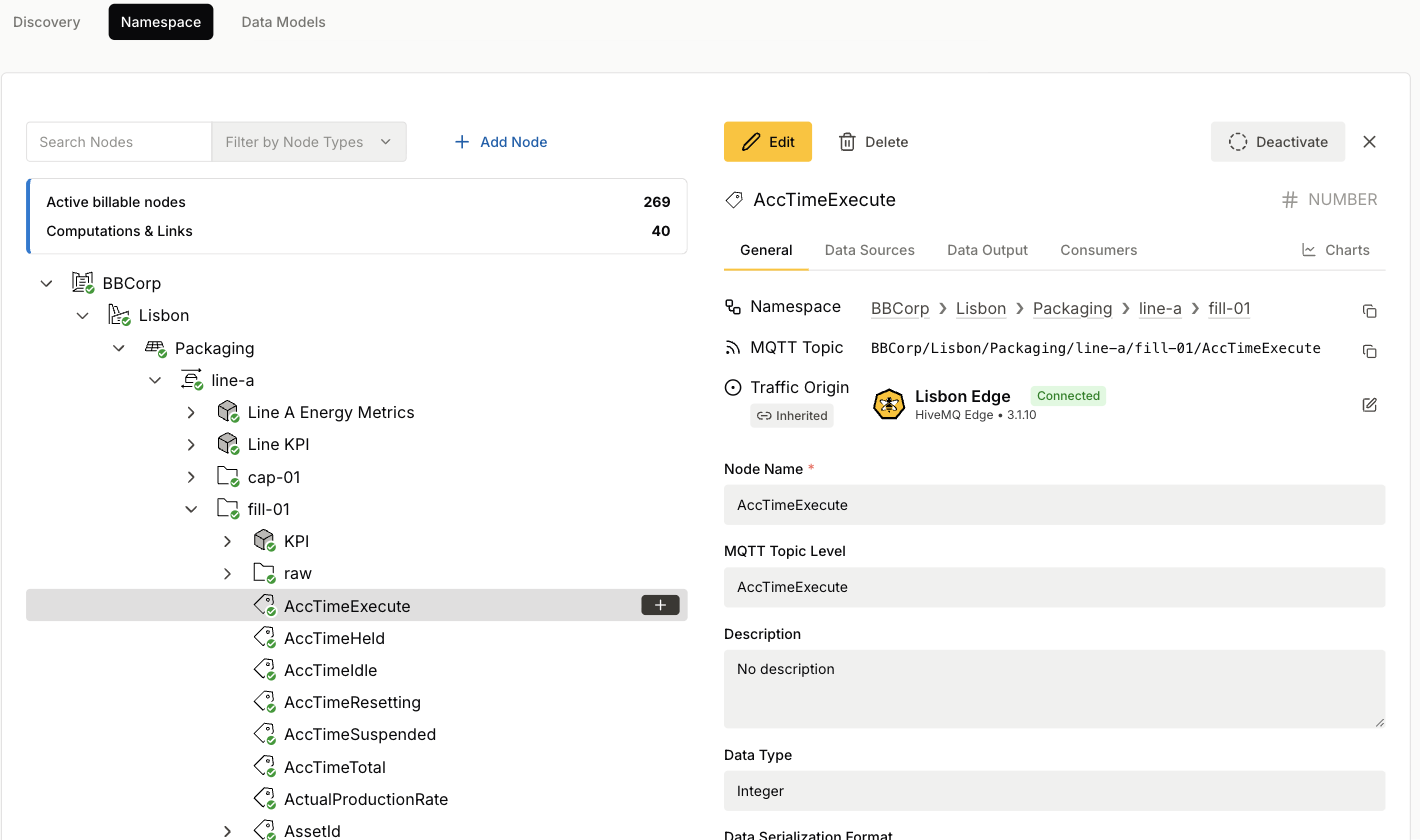
Activate a Node
-
In the namespace tree, select the node that you want to activate.
-
In the panel header, click Activate.
-
Review the figures in the confirmation dialog.
-
Click Activate to apply the change.
The confirmation dialog reports the effect of the change in three figures:
| Figure | Description |
|---|---|
Nodes activated |
The number of nodes that change state. The count includes the selected node and every node that the cascade reaches. |
Active billable nodes |
The number of billable nodes that the change adds. |
Computations & Links |
The number of computations and links that the change adds. |
| The dialog counts only the nodes that change state. A node that is already active does not add to the count. The figure can therefore be lower than the number of nodes that your selection covers. |
When you activate a node with a calculation, an expression, or a link, HiveMQ also activates the nodes that supply its inputs. Without this cascade, the node produces no value. The dialog reports the size of the cascade as a count, and does not list the individual nodes.
| To see which nodes depend on the selected node before you act, open the Consumers tab. See Consumers. |
Deactivate a Node
-
In the namespace tree, select the node that you want to deactivate.
-
In the panel header, click Deactivate.
-
Review the figures in the confirmation dialog.
-
Click Deactivate and lose data to apply the change.
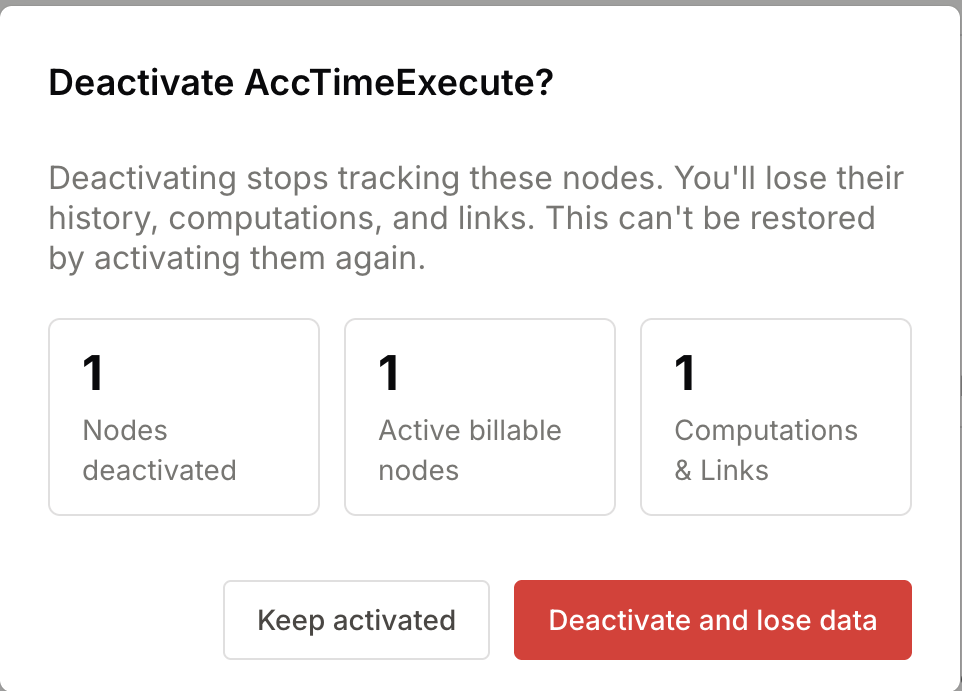
When you deactivate a node, the broker no longer stores its values, runs its computations, or reports its deviations.
|
Deactivation deletes the stored history of the affected tags. Reactivation does not restore the history. HiveMQ also collects no values while a node is inactive, so the history has a gap for that period. |
Deactivation keeps your definitions. The dialog warns that you lose the computations and links of the affected nodes. However, the definitions remain in your namespace. Calculations, expressions, and links run again when you reactivate the nodes. You do not need to define them a second time.
Both cascades enforce the same rule: an active node needs active inputs. When you activate a node, HiveMQ also activates the nodes that supply it. When you deactivate a node, HiveMQ also deactivates the nodes that read from it. The cascade is transitive, so it reaches the nodes that read from those nodes. The inputs of the node stay active, because other nodes can depend on the same inputs.
| If the cascade reaches a node inside a data model instance, HiveMQ deactivates the whole instance. Check the node count in the confirmation dialog before you continue. |
When the Activation Limit Blocks the Action
Without the Data Intelligence add-on, a limit caps the number of nodes that can be active at the same time. If your selection exceeds the limit, the confirmation dialog reports how much of the limit is left, and offers Upgrade in place of Activate.
The limit applies to activation only. HiveMQ never blocks a deactivation. For the relationship between the activation limit and the free allowance on your invoice, see Activation Limits and the Free Allowance.
Data Types and Serialization Formats
Each data node (a Tag or Field) declares a data type that describes the kind of value it holds and a serialization format that describes how that value is encoded in the MQTT payload. Discovery suggests both from the observed traffic, and you can change them on the node’s General tab.
Data Types
| Data Type | Description |
|---|---|
Bytes / Unspecified |
Raw bytes with no interpretation applied. Use this when the payload has no defined structure. |
Integer |
An arbitrary-precision whole number. |
Decimal |
An arbitrary-precision decimal number, for measurements and calculations. |
Boolean |
A |
String |
A text value. |
Object |
A structured value, such as a JSON object or array, that can contain multiple fields. |
DateTime |
A timestamp value. |
Serialization Formats
The serialization formats available for a node depend on its selected data type.
| Data Type | Supported Serialization Formats |
|---|---|
Bytes / Unspecified |
Bytes |
Integer |
JSON Object (UTF-8), UTF-8, ISO 8859-1, Float, Double, Int8, Int16, Int32, Int64, UInt8, UInt16, UInt32, UInt64 |
Decimal |
JSON Object (UTF-8), UTF-8, ISO 8859-1, Float, Double, Int8, Int16, Int32, Int64, UInt8, UInt16, UInt32, UInt64 |
Boolean |
JSON Object (UTF-8) |
String |
JSON Object (UTF-8), UTF-8, ISO 8859-1 |
Object |
JSON Object (UTF-8), JSON Array (UTF-8) |
DateTime |
Unix Timestamp (milliseconds), Unix Timestamp (seconds), ISO 8601 |
Data Sources
Every data node reads its value from a data source. The Data Sources tab shows the source that a node uses, and lets you change it.
Only data nodes have a data source. You can configure a source for a Tag, an Asset, or a Field. For an organizational node (Enterprise, Site, Area, Line, or Folder), the tab reports that the node type cannot use data sources.
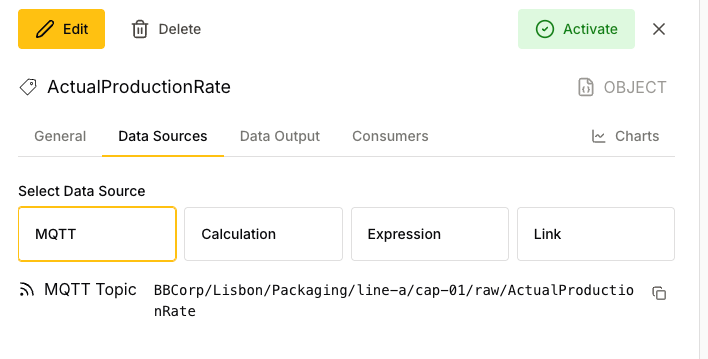
Under Select Data Source, select the source type that the node uses.
| Source | Description |
|---|---|
MQTT |
The node reads its value from the live MQTT traffic of a connected broker. The MQTT topic levels of the node and its parents determine the topic, and the data type of the node determines the expected payload. Every new node starts with an MQTT source. |
Calculation |
The node derives its value from a predefined function, such as a sum, over other nodes that supply the inputs. |
Expression |
The node derives its value from a formula that you write, such as |
Link |
The node mirrors another data node. Every value that the linked node receives also appears on this node. |
For an MQTT source, the tab shows the MQTT Topic that the node maps to. For a Field node, the tab shows the Selector of the field, the path to the value inside the payload.
To move a node back to MQTT from another source, select MQTT, then click Save Data Source Change.
For a Calculation or an Expression source, you select a function or write a formula, then map every input to a node in the namespace. For the full workflow, from the creation of the tag to the mapping of each variable, see Computations. For the syntax of a formula, see Expression Language. For the available functions, see Functions.
| In case of a window aggregation, the platform determines how much needs to be stored to compute the aggregation. Users do not need to manually configure history for it. For how a Tag retains values, see Store and View Tag History. |
For a Link source, select the Destination Link Node, the node that provides the data, then click Create Link Relation. Data flows in one direction: from the destination link node to the node that you configure.
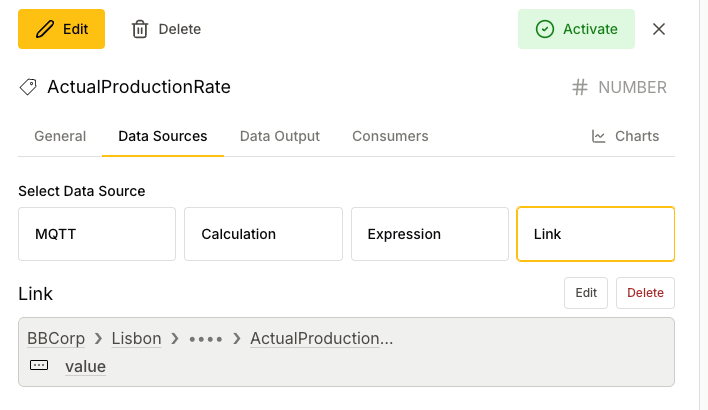
|
A tag and its fields can hold only one calculation, expression, or link at a time. The limit covers the whole tag, so each field counts against the tag above it. If another node under the same tag already uses one of these three sources, the tab disables the selection and reports the limit. |
| Calculations, expressions, and links take their values from other nodes. When you activate a node with a computation or a link, HiveMQ also activates the nodes that supply its inputs. For details, see Activate and Deactivate Nodes. |
Broker Assignment for Calculations and Expressions
Each calculation and expression runs on a connected broker. HiveMQ assigns the broker automatically, based on the traffic origin of the input nodes or their parent nodes.
HiveMQ cannot assign a broker in the following cases:
-
No input node or parent node has a traffic origin.
-
The input nodes have different traffic origins.
In these cases, HiveMQ saves the calculation or expression, but no broker runs it. The Data Sources tab shows the warning Cannot assign a broker.
To assign a broker, set the same traffic origin on all input nodes or on their parent nodes. HiveMQ then assigns the broker automatically.
If you remove the last traffic origin from the input nodes and their parent nodes, HiveMQ removes the broker assignment. No broker runs the calculation or expression until you set a new traffic origin.
Data Sources in a Data Model Instance
A data model can define the data sources of its tags and fields. In a data model instance, those data sources are read-only. For these nodes, the Data Sources tab shows the data source and the message This data source is defined by a data model. Change it in the data model and upgrade this instance. For more information, see Update or Upgrade a Model Instance.
Store and View Tag History
A data node can retain the values it receives over time as its history. Stored history powers the Data Output and Charts tabs and provides the past values that aggregations, calculations, and expressions draw on.
Historical data points are kept by a dedicated persistence layer that runs in your connected HiveMQ Edge and HiveMQ Enterprise brokers, close to where the data is produced. History is configured per tag, so you decide exactly how much data each node retains.
Configure History
Select the tag in the namespace tree to open its detail panel, then select Edit to reveal the History Settings, where you control whether (and how much) history is retained.
| HiveMQ enables history by default for Tag and Asset nodes. The default limits are a Quantity of one element, the most recent value, and a Data Volume of 10 KB. By default, no Time Frame is set. To retain more history, adjust the limits. |
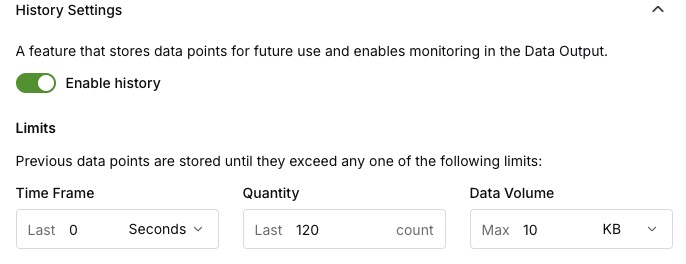
-
Use the Enable history toggle to turn retention on or off for the tag.
-
Under Limits, previous data points are stored until they exceed any one of the following limits:
| Limit | Description |
|---|---|
Time Frame |
The maximum age of retained data points (for example, the last 30 seconds). |
Quantity |
The maximum number of retained data points (for example, the last 120 values). |
Data Volume |
The maximum storage used by retained data points (for example, 10 KB). |
When new data arrives, any stored data points that exceed a limit are removed.
HiveMQ stores only the limits that you set and does not add default limits. If you save a tag with the Enable history toggle turned off, HiveMQ retains no values for the tag.
View History in the Data Output Tab
The Data Output tab shows the values of a tag as the latest payloads stored in its history. Use it to inspect the actual data the tag has received (for example, the most recent temperature readings).
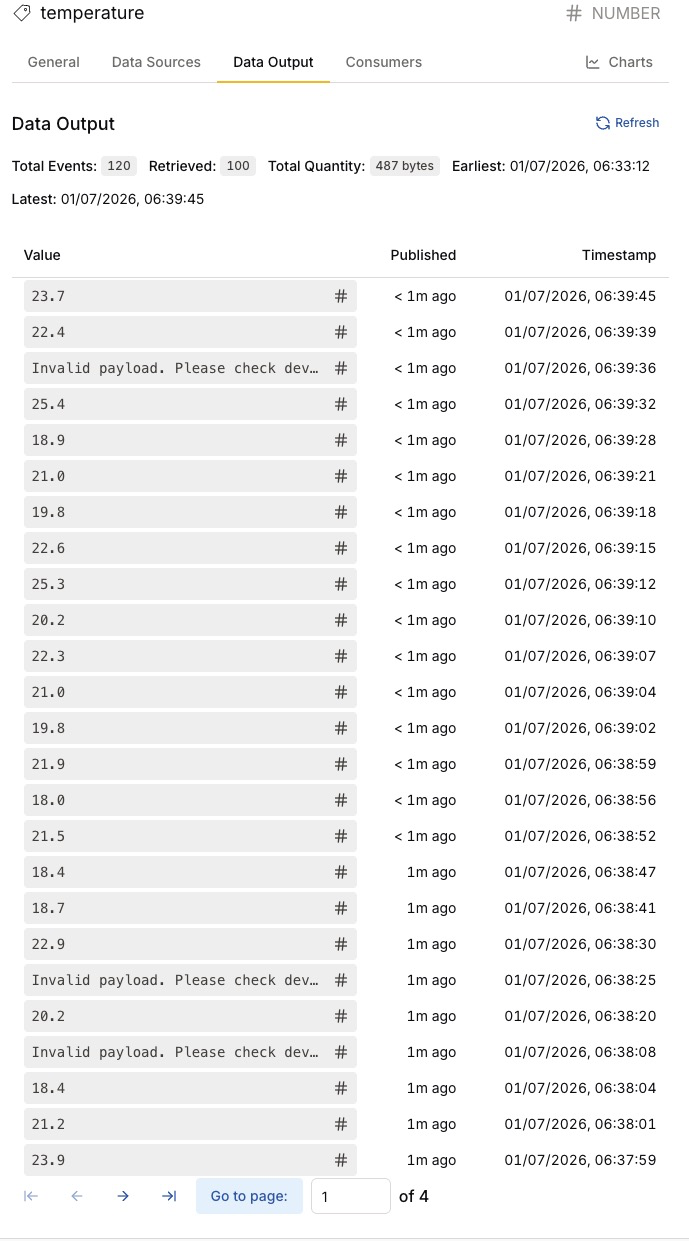
| To view stored payloads in Data Output, history must be enabled for the tag. See Configure History. |
For a tag whose payload is a complex Object rather than a single value, select a stored payload to open the Payload View, which shows the full payload (for example, a JSON object with multiple fields).
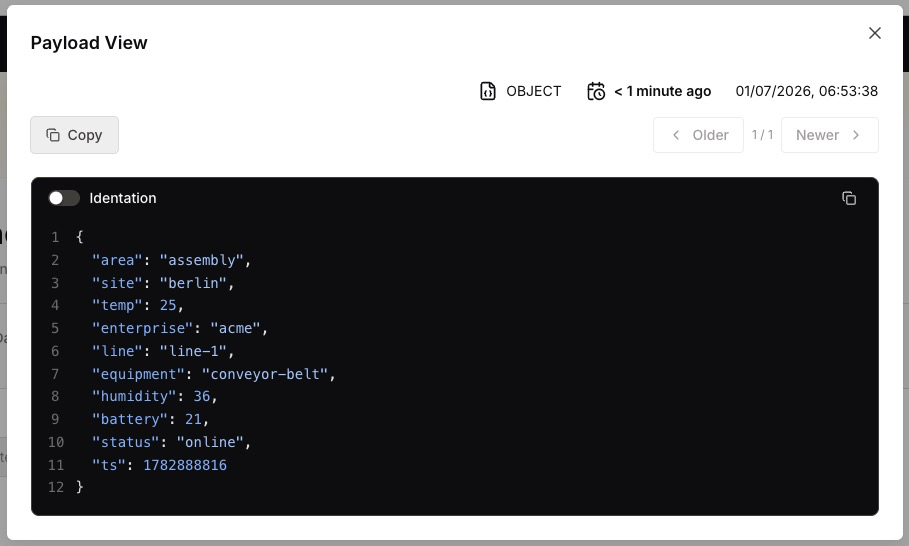
In the Payload View you can:
-
Copy the payload with Copy.
-
Toggle Indentation to switch between compact and indented formatting.
-
Use the Older and Newer controls to navigate between the stored payloads captured at different timestamps.
View History in the Charts Tab
The Charts tab plots a tag’s recent values as a History Chart, so you can see how a signal has behaved over time.
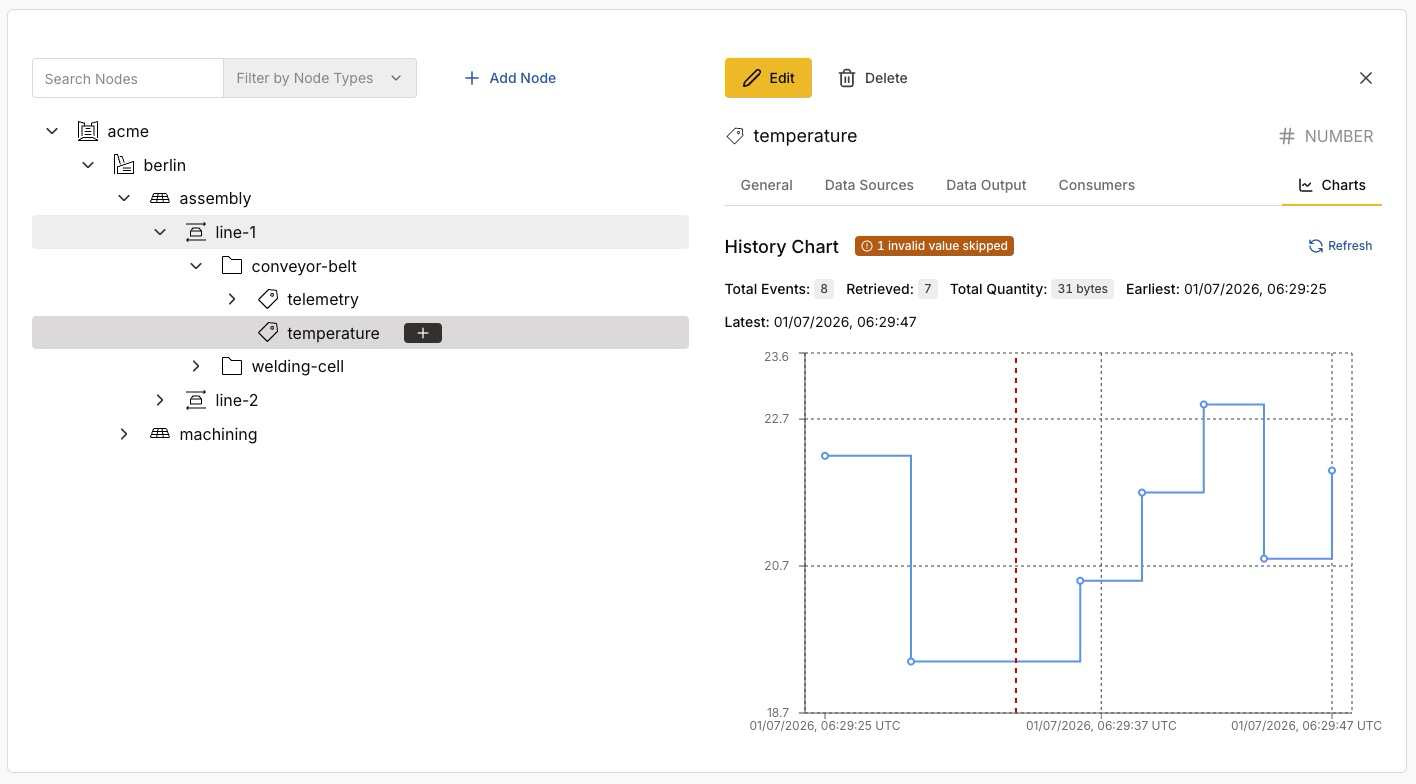
Above the chart, a summary reports the stored history (for example, Total Events, Retrieved, Total Quantity, and the Earliest and Latest timestamps).
If the platform receives a payload that does not match the tag’s expected data type, it skips that value and marks it (for example, with a 1 invalid value skipped badge and a vertical marker on the chart). A skipped value signals a deviation in the incoming data.
| A skipped value is surfaced here so you can spot it. Payloads that do not match a tag’s expected data type are treated as deviations from the namespace declaration. |
Consumers
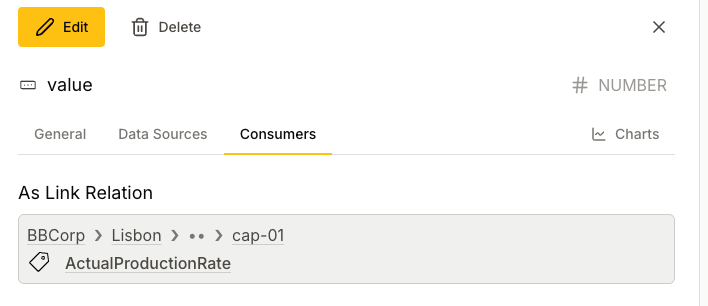
The Consumers tab answers the reverse question of the Data Sources tab: which nodes depend on this node? The tab lists every node that references the selected node, grouped by the type of reference.
| Group | Description |
|---|---|
As Calculation Input |
Nodes whose calculation reads the selected node as an input. |
As Expression Input |
Nodes whose expression maps a variable to the selected node. |
As Link Relation |
Nodes that link to the selected node and receive a copy of its payloads. |
Each entry shows the namespace path and the name of the consumer. Click the name to highlight that node in the namespace tree. If no node references the selected node, the tab reports No consumers found for this node.
| Open the Consumers tab before you change or delete a node, to see what depends on the node. |
Search the Namespace
As your namespace grows, the search bar turns it into a data catalog across your entire topology. Enter a term to find matching nodes anywhere in the namespace, no matter how deep they sit in the hierarchy.
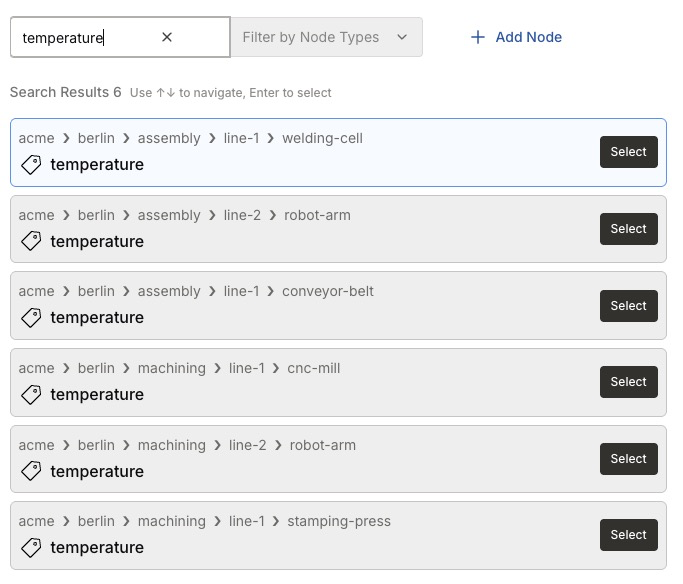
For example, searching for temperature returns every temperature tag across all sites, areas, and lines.
Each result is shown with its full namespace path (such as acme > berlin > assembly > line-1 > conveyor-belt > temperature), so you can see exactly where each match lives.
-
Use Filter by Node Types to restrict results to specific node types.
-
Navigate the results with the up and down arrow keys, and press Enter (or select Select) to open a result.
The result count (for example, Search Results 6) tells you how many nodes match, giving you a catalog-style view of where a given signal exists across your operation.
Two Ways to Build a Namespace
There are two complementary approaches to building your namespace.
- Top-down design
-
You define the namespace structure directly (as in the steps above) and then align your data to fit the model. This establishes a clear, intentional information model before any data flows exist. It suits new projects without existing data, or cases where the design should not depend on connected infrastructure.
- Bottom-up design
-
You use Discovery to detect active data flows from your connected brokers, then review, approve, and incorporate the discovered data sources into the namespace. This suits projects with existing infrastructure that already produces valuable data, where rapidly reflecting the current state of operations is a priority.
You can combine both: start with Discovery to accelerate onboarding, then refine the model top-down for governance and long-term manageability.
Next Steps
With a structured namespace in place, you can:
-
Populate it automatically from live data with Discovery.
-
Describe the structure of your payloads with Data Models.