Computations
Computations give you the ability to derive new values and insights from your data while it is in transit. Because the data already passes through the broker, the broker executes the computation directly. There is no extra network hop and no separate compute infrastructure to operate. Instead of exporting raw data to a separate system to calculate a result and feed it back, you define the logic once in the namespace and the platform computes it on the connected brokers as data flows.
This approach reduces the effort to build and maintain extra systems. It keeps your derived values close to the definitions that describe them: the computation, the data it draws on, and the surrounding context all live in the same namespace.
A computation lets a namespace node derive its value from other tags, rather than read it directly from MQTT.
For example, you can take a raw temperature tag in Celsius and produce a new corrected_temperature tag in Fahrenheit.
Computations run on the connected brokers, close to the data, according to the declaration in your namespace. This guide shows how to create a computation, step by step.
Before You Begin: Route the Site to a Broker
A computation runs on the broker that carries the site’s traffic. So first, relate the site to a connected broker.
-
Click the site node (in this example,
berlin). On its General tab, add a New Relation. -
Under Destination Broker, select the broker that carries the site’s traffic, for example, HQ Broker.
-
Click Create Relation.
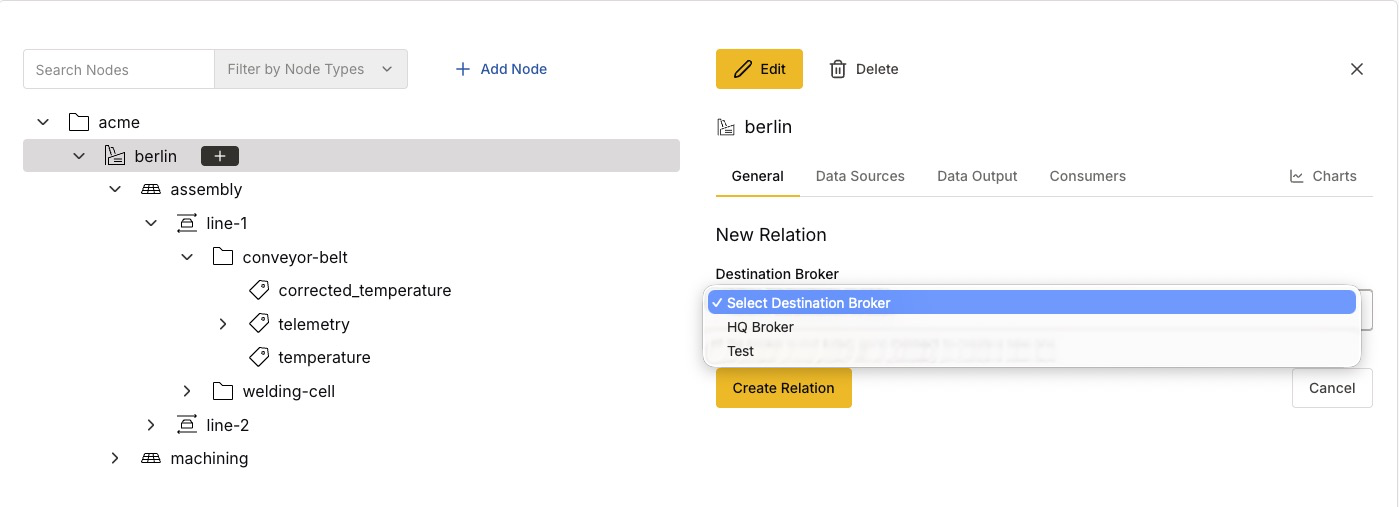
| If you create a computation before you relate the site to a broker, HiveMQ saves the computation, but no broker runs it. The Data Sources tab shows the warning Cannot assign a broker. After you relate the site to a broker, HiveMQ automatically assigns the broker to the computation. For more information, see Assign a Broker to a Calculation or Expression. |
Step 1: Create a Tag for the Computed Value
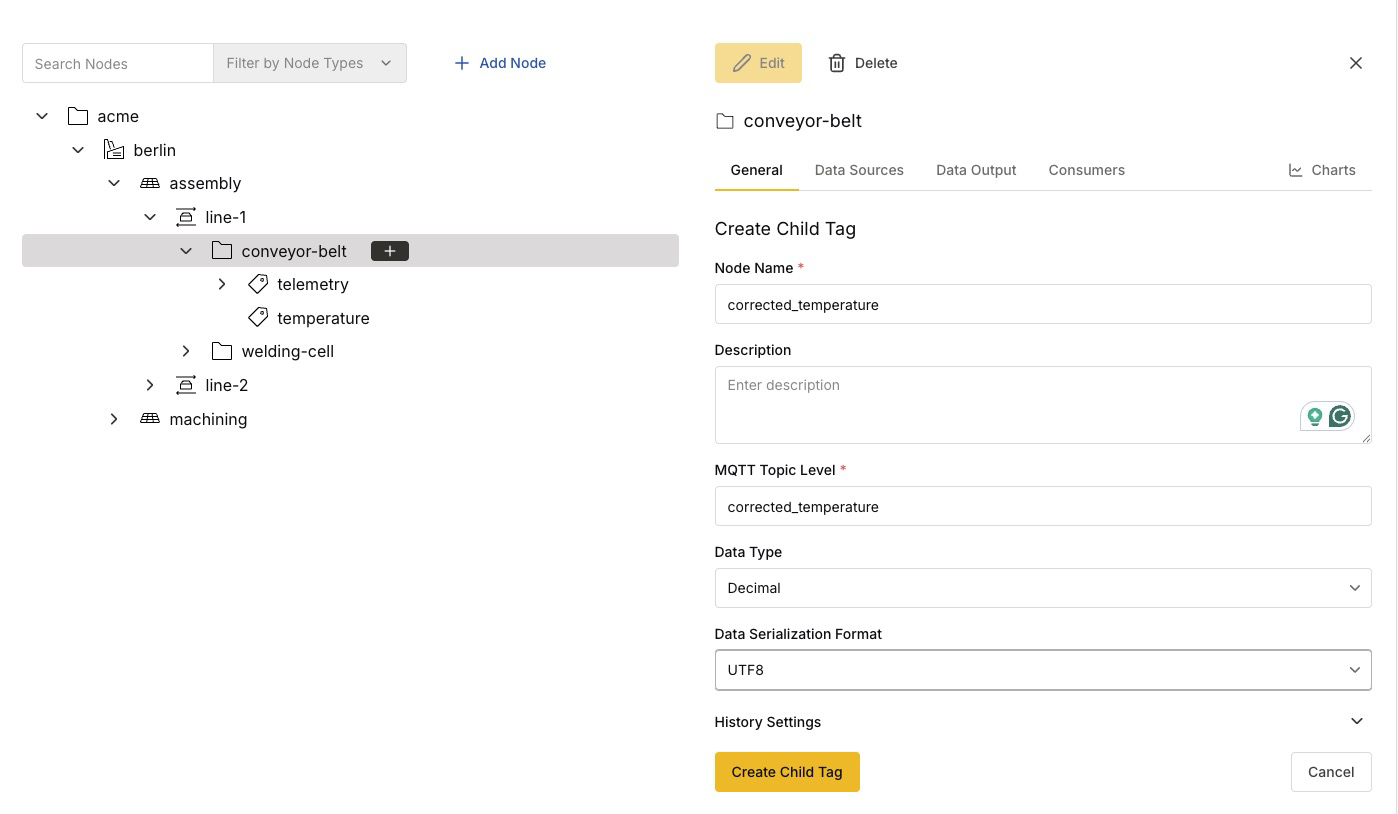
Create the tag that holds the result of the computation.
-
Click the parent node (in this example, the
conveyor-beltfolder) and click + to add a child Tag. -
Enter the Node Name and MQTT Topic Level (for example,
corrected_temperature). -
Set the Data Type and Data Serialization Format you expect the result to have (for example,
Decimalserialized asUTF8). -
Click Create Child Tag.
Step 2: Choose the Data Source
By default, a tag reads its value from MQTT. A computed tag draws its value from other tags instead, so you change its data source.
Open the new tag’s Data Sources tab and select the source type. You can compute a value in two ways:
-
Calculation: an easy-to-use, predefined set of functions. Best for common operations.
-
Expression: a free-form formula for more complex computations.
| Both calculations and expressions build on the same set of functions. See the functions reference for everything available. |
| A tag can also take its value from a Link, which mirrors the values of another node instead of computing a new one. A tag holds only one computation, expression, or link at a time. For all four source types, see Data Sources. |
This example uses an Expression to convert Celsius to Fahrenheit.
Step 3: Write the Expression
Click Expression and enter the formula in Expression Content. For the literals, operators, and syntax rules available in a formula, see Expression Language. To convert Celsius to Fahrenheit, use:
(celsius * 9/5) + 32The platform parses the formula and lists each name it finds under Detected Variables. In this case, a single variable named celsius.
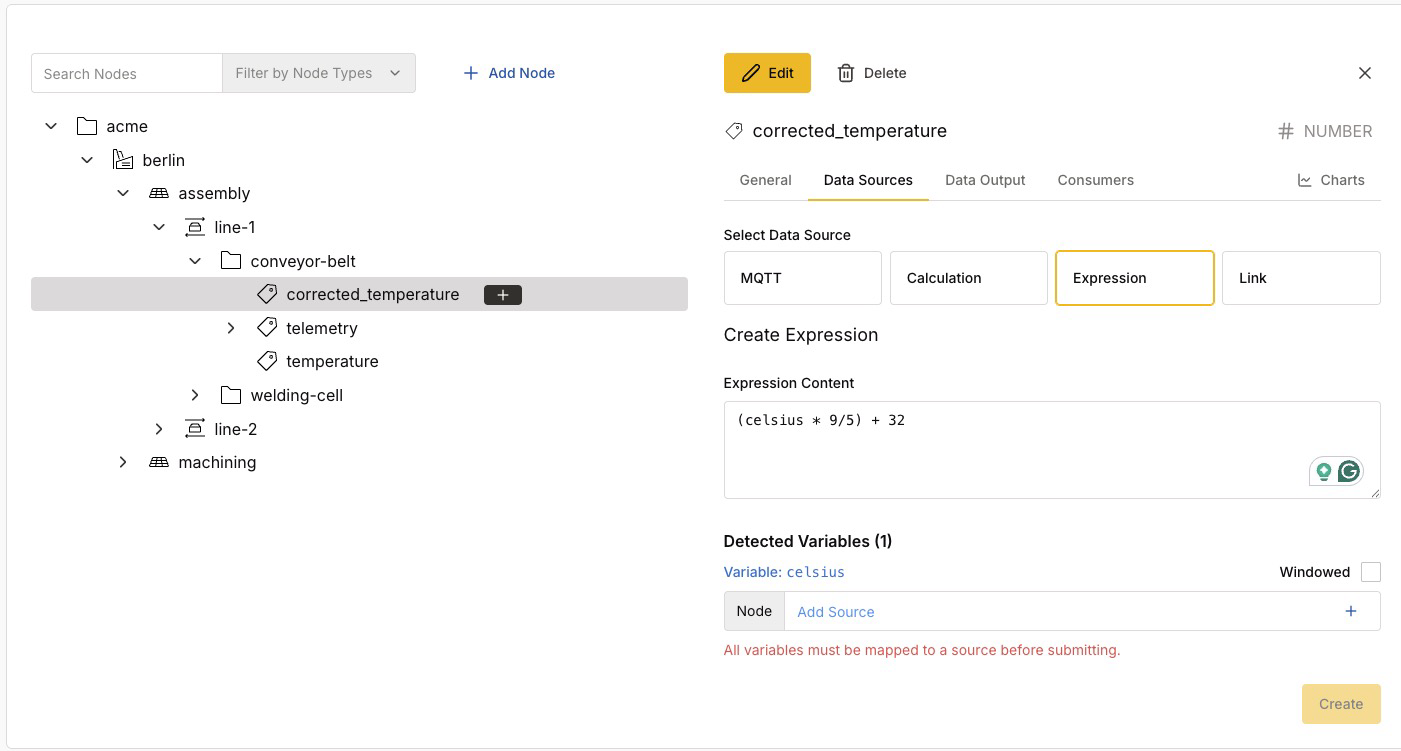
| The variable name is just a placeholder in the formula. In the next step, you map it to the tag that supplies its values. |
Step 4: Map Each Variable to a Tag
You must map every detected variable to an existing tag before you save the computation.
-
Next to the
celsiusvariable, click Add Source to open the Select a Tag dialog. -
Find the tag that supplies the value (search by topic prefix or by node name) and click the
temperaturetag. -
Click Select to map the variable.
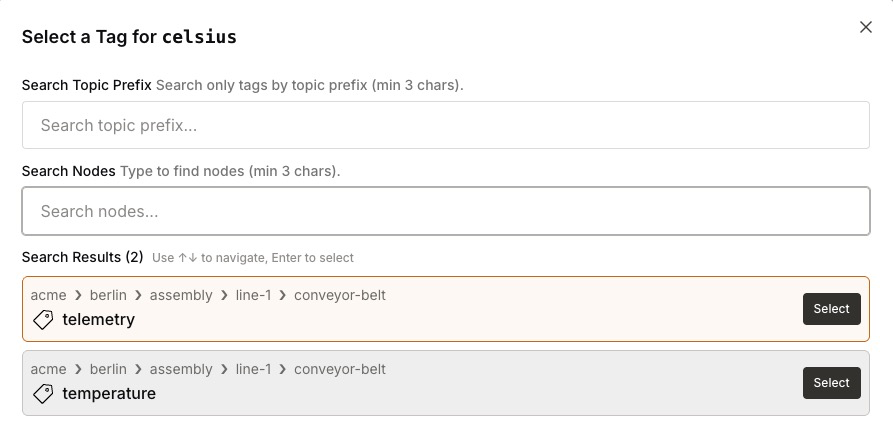
After you map every variable, click Create to save the computation.
| To compute over a tag’s stored history rather than its latest value (for example, a moving average), enable the Windowed option for the variable. See tag history for how values are retained. |
Result
The platform computes the corrected_temperature tag continuously. Whenever the temperature tag receives a new value, the platform recalculates the Fahrenheit result on the broker.
The computed tag behaves like any other tag. You can inspect its values in the Data Output and Charts tabs, and reference it from further computations.
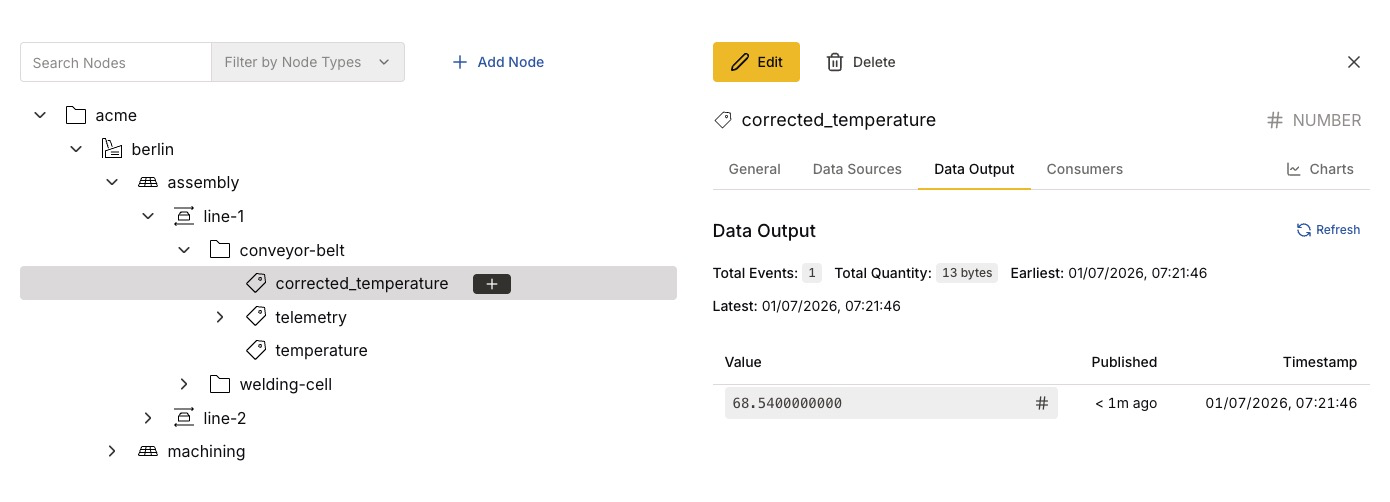
For example, the Data Output tab of corrected_temperature shows the computed Fahrenheit value, such as 68.54 for the corresponding Celsius reading.
For the full list of functions available in calculations and expressions, see Functions.
Beyond a Single Value: Complex Expressions
The example above transforms one input, but expressions are not limited to a single value. An expression can combine multiple input tags, and draw on a tag’s stored history to compute higher-level insights, not just unit conversions.
A common example is reliability engineering. When you combine an asset’s state transitions over time, you can compute metrics such as Mean Time Between Failures (MTBF), Mean Time To Repair (MTTR), and availability directly in the namespace. Use functions such as BetweenState to measure how long an asset spends in each state.
For a detailed, worked walkthrough of how to build these reliability key performance indicators (KPIs) with expressions, see the HiveMQ blog post Real-Time Reliability KPIs: MTBF, MTTR, and Availability.