HiveMQ MQTT Add-ons
HiveMQ MQTT Add-ons extend the standard functionality of MQTT to satisfy the needs of several key IIoT/IoT use cases.
HiveMQ Topic Add-ons
HiveMQ MQTT Topic Add-ons are optional analytical MQTT topics that automatically collect detailed information about events on your HiveMQ system. The add-ons can capture all expired, dropped, and dead MQTT messages, as well as the connect and disconnect events of your clients. Topic Add-ons simplify access to the data and metrics you need. You can analyze the information, create reports, or process the data further in external solutions such as Kafka.
For more information, see Sample Use Cases.
HiveMQ analytical topics use a reserved namespace that prevents conflicts with your existing workflows and applications. The reserved namespaces are denoted with $:
-
MQTT clients must subscribe to a topic on the $ namespace to receive data. For example, $expired/my-topic-of-interest/topic.
-
Only the HiveMQ broker can publish on a $ namespace, MQTT clients cannot publish messages on the reserved namespace.
-
$ namespaces are excluded from # wildcard subscriptions.
-
$ namespaces can be combined to fulfill specific use cases. For example, $dead/$expired/my-topic-of-interest/topic or $dropped/$expired/my-topic-of-interest/topic.
To subscribe to one of the MQTT Add-ons topics, users require explicit permission.
For example, $expired/, $dead/, or $dropped/#.
|
| Circular configurations of MQTT Add-ons such as $dead/$expired/$dead or $dead/$dead are not possible. For example, the same message can not expire more than once within and expired topic or be published to one $dead topic multiple times. |
| Topic Name | Namespace | Default | Description |
|---|---|---|---|
Expired Messages Topic |
$expired |
disabled |
Captures all expired messages on the HiveMQ system |
Dropped Messages Topic |
$dropped |
disabled |
Captures all dropped messages on the HiveMQ system |
Dead Messages Topic |
$dead |
disabled |
Captures all dead messages on the HiveMQ system |
Client Lifecycle Topic |
$client-events |
disabled |
Captures the connect and disconnect events of the clients on the HiveMQ system |
Expired Messages Topic
The Expired Messages Topic add-on prefaces the topic of expired messages with $expired/.
Message expiry is a standard feature of the MQTT protocol that lets you define the length of time that can pass after a message arrives at your MQTT broker until the message expires. Messages that expire are never published. Message expiry can occur for several reasons:
-
A client takes too long to consume the message
-
The client remains offline and the message expires before the client can consume it
-
A retained message that is stored on the broker expires
For more information on message expiry and expiry configuration options, see Message Expiry.
| Stored retained messages that expire are not redirected to the $expired topic. |
Enable the Expired Messages Topic Add-on
Enable the $expired topic to stay informed about all messages that expire on HiveMQ. The expired-message topic add-on provides useful data such as the client or shared subscription for which the message expired.
-
To enable the Expired Messages Topic add-on, go to your HiveMQ configuration XML file and locate the
mqtt-addons section. -
Set the enabled tag of
<expired-messages-topic>totrue.
When the Expired Messages Topic add-on is enabled, HiveMQ publishes all queued messages and inflight messages that expire due to the defined maximum message expiry interval to $expired/<original topic>.
HiveMQ only re-publishes messages that expire due to the message expiry. Messages that are removed due to an expired session are not re-published. For more information, see Session and Message Expiry.
To subscribe to the Expired Messages Topic, users must have explicit permission.
For example, $expired/#.
|
You can utilize all existing MQTT and HiveMQ subscription and consumer mechanisms to interact with the expired messages.
For example, subscribe an MQTT client to $expired/# to get expired messages from all sources or configure HiveMQ enterprise extensions such as the Kafka extension to consume messages from $expired topics.
| When you subscribe to an $expired topic, standard queuing mechanisms such as the maximum queue length and limits for shared subscriptions or consumers apply. We recommend the use of dedicated clients and shared subscriptions for analytical topics with appropriately configured queue limits. |
<?xml version="1.0"?>
<hivemq xmlns:xsi="http://www.w3.org/2001/XMLSchema-instance">
    ...

    <mqtt-addons>
        <expired-messages-topic>
            <enabled>true</enabled>
        </expired-messages-topic>
    </mqtt-addons>
    ...
</hivemq>|
HiveMQ publishes each expired message on $expired/<original-topic> as an MQTT 5 message and stores metadata from the original message in user properties.
User properties are an MQTT 5 feature.
MQTT 3 clients that subscribe to an $expired topic do not receive any of the information that is provided in the user properties of the $expired topic. For more information, see Expired Messages Topic User Properties. |
Expired Messages Topic User Properties
The Expired Messages Topic add-on publishes several additional user properties in each $expired/<original-topic> MQTT 5 message. The additional user properties appear after any user properties from the original message.
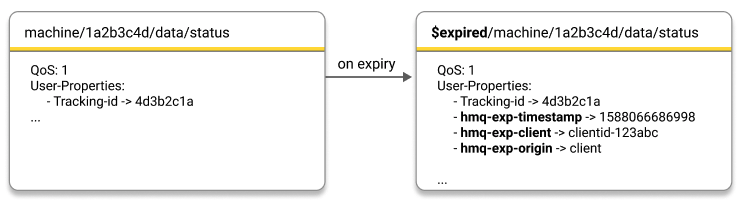
| User Property Name | Description |
|---|---|
hmq-exp-timestamp |
The UNIX timestamp when the message expired |
hmq-exp-origin |
The origin type of the expired message
|
hmq-exp-client |
When the origin type of the expired message is client, this property shows the client ID of the client for which the message expired |
hmq-exp-shared-subscription |
When the origin type of the expired message is shared subscription, this property shows the full shared subscription for which the queued/inflight message expired |
hmq-exp-consumer |
When the origin type of the expired message is consumer, this property shows the id of the consumer for which the message expired |
Expired Messages Topic Available Information
The Expired Messages Topic add-on preserves the following information for each expired message:
-
The original MQTT message payload
-
All MQTT metadata:
| To preserve the retained flag of the expired message, the subscription to the $expired topic must have a retain-as-published flag set. |
Expired Messages Topic Metrics
The Expired Messages Topic add-on exposes additional metrics in the HiveMQ standard metrics:
| Metric | Type | Description |
|---|---|---|
com.hivemq.messages.expired-messages |
|
The total number of expired messages on the broker |
com.hivemq.messages.expired.topic.dropped.count |
|
The number of expired messages that are dropped due to queue limits |
com.hivemq.messages.expired.topic.expired.count |
|
The number of expired messages that expire in an $expired topic |
com.hivemq.messages.expired.topic.enqueued.count |
|
The number of expired messages that are queued to an $expired topic |
| Messages that expire within an $expired topic do not trigger publication of another expired message. |
For a full list of HiveMQ metrics, see Available Metrics.
Dropped Messages Topic
The Dropped Messages Topic add-on prefaces the topic of dropped messages with $dropped/.
In MQTT, dropped messages are messages that the MQTT broker does not publish. Dropped messages can occur for various reasons.
For detailed information on dropped messages and the reasons messages are dropped, see Dropped Messages.
Enable the Dropped Messages Topic Add-on
Enable the $dropped topic to gain an overview of all dropped messages on your HiveMQ system. The dropped-messages topic includes key information such as the dropped reason code and the client for which the message was dropped.
-
To enable the Dropped Messages Topic add-on, go to your HiveMQ configuration XML file and locate the
mqtt-addons section. -
Set the enabled tag of
<dropped-messages-topic>totrue.
When the Dropped Messages Topic add-on is enabled, HiveMQ publishes all messages that are dropped to $dropped/<original topic>.
To subscribe to the Dropped Messages Topic, users must have explicit permission.
For example, $dropped/#.
|
You can utilize all existing MQTT and HiveMQ subscription and consumer mechanisms to interact with the dropped messages.
For example, subscribe an MQTT client to $dropped/# to get all dropped messages or configure HiveMQ enterprise extensions such as the Kafka extension to consume messages from a $dropped topic.
When you subscribe to a $dropped topic, standard queuing mechanisms such as the maximum queue length and limits for shared subscriptions or consumers apply. We recommend the use of dedicated clients and shared subscriptions for analytical topics with appropriately configured queue limits.
<?xml version="1.0"?>
<hivemq xmlns:xsi="http://www.w3.org/2001/XMLSchema-instance">
    ...

    <mqtt-addons>
        <dropped-messages-topic>
            <enabled>true</enabled>
        </dropped-messages-topic>
    </mqtt-addons>
    ...
</hivemq>| HiveMQ publishes each dropped message on $dropped/<original-topic> as an MQTT 5 message and stores metadata from the original message in user properties. User properties are an MQTT 5 feature. MQTT 3 clients that subscribe to the $dropped topic do not receive any of the information that is provided in the user properties of the $dropped topic. For more information, see Dropped Messages Topic User Properties. |
Dropped Messages Topic User Properties
The Dropped Messages Topic add-on publishes several additional user properties in each $dropped/<original-topic> MQTT 5 message. The additional user properties appear after any user properties from the original message.
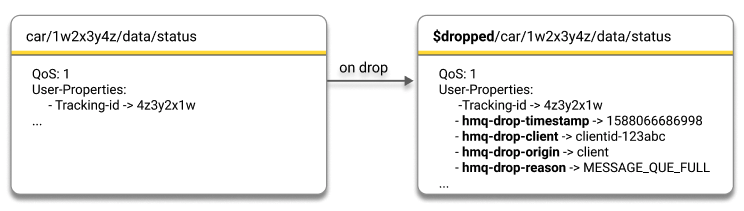
| User Property Name | Description |
|---|---|
hmq-drop-timestamp |
The UNIX timestamp when the broker dropped the message |
hmq-drop-origin |
The origin type of the dropped message. The following options are possible:
|
hmq-drop-client |
When the origin type of the dropped message is client, this property shows the client ID of the client for which the queued/inflight message dropped |
hmq-drop-shared-subscription |
When the origin type of the dropped message is shared subscription, this property shows the full shared subscription for which the queued/inflight message dropped NOTE: When a messages with QoS 0 is dropped for a shared subscription with the reason Internal Error or Not writable, both the client and shared subscription origin are present. |
hmq-drop-consumer |
When the origin type of the dropped message is consumer, this property shows the id of the consumer for which the queued/inflight message dropped |
hmq-drop-reason |
The reason why the message dropped. The following reasons are currently available:
|
Dropped Messages Topic Available Information
The Dropped Messages Topic add-on preserves the following information for each dropped message:
-
The original MQTT message payload
-
All MQTT metadata:
| To preserve the retained flag of the dropped message, the subscription to the $dropped topic must have a retain-as-published flag set. |
Dropped Messages Topic Metrics
The Dropped Messages Topic add-on exposes additional metrics in the HiveMQ standard metrics:
| Metric | Type | Description |
|---|---|---|
com.hivemq.messages.dropped.count |
|
The total number of dropped messages on the broker |
com.hivemq.messages.dropped.topic.dropped.count |
|
The number of dropped messages in a $dropped topic that are dropped due to queue limits |
com.hivemq.messages.dropped.topic.message-created.client.count |
|
The number of dropped messages in a $dropped topic that originate from clients |
com.hivemq.messages.dropped.topic.message-created.shared.count |
|
The number of dropped messages in a $dropped topic that originate from shared subscriptions |
com.hivemq.messages.dropped.topic.message-created.consumer.count |
|
The number dropped messages in a $dropped topic that originate from consumers |
com.hivemq.messages.dropped.topic.enqueued.count |
|
The number of dropped messages that are queued to a $dropped topic |
For a full list of HiveMQ metrics, see Available Metrics.
Dead Messages Topic
The Dead Messages Topic add-on prefaces the topic of messages that do not have any subscribers with $dead/.
As soon as the HiveMQ broker detects that a message is without subscribers, the message is considered a dead messages. As a HiveMQ administrator it is useful to know exactly how and when messages that are not delivered to a subscriber occur.
Enable the Dead Messages Topic Add-on
Enable the $dead topic to gain an overview of all dead messages on your HiveMQ system. The dead-messages topic includes key information such as the payload and topic of the dropped message and lets you identify precisely when and which client sent the dead message.
-
To enable the Dead Messages Topic add-on, go to your HiveMQ configuration XML file and locate the
mqtt-addons section. -
Set the enabled tag of
<dead-messages-topic>totrue.
When the Dead Messages Topic add-on is enabled, HiveMQ publishes all dead messages to $dead/<original topic>.
To subscribe to the Dead Messages Topic, users must have explicit permission.
For example, $dead/#.
|
You can utilize all existing MQTT and HiveMQ subscription and consumer mechanisms to interact with your dead messages.
For example, subscribe an MQTT client to $dead/# to get all dead messages or configure HiveMQ enterprise extensions such as the Kafka extension to consume messages from a $dead topic.
For example, collect information on all messages Kafka transforms to MQTT messages that do not have a matching subscriber.
When you subscribe to a $dead topic, standard queuing mechanisms such as the maximum queue length and limits for shared subscriptions or consumers apply. We recommend the use of dedicated clients and shared subscriptions for analytical topics with appropriately configured queue limits.
<?xml version="1.0"?>
<hivemq xmlns:xsi="http://www.w3.org/2001/XMLSchema-instance">
    ...

    <mqtt-addons>
        <dead-messages-topic>
            <enabled>true</enabled>
        </dead-messages-topic>
    </mqtt-addons>
    ...
</hivemq>|
HiveMQ publishes each dead message on $dead/<original-topic> as an MQTT 5 message and stores metadata from the original message in user properties.
User properties are an MQTT 5 feature.
MQTT 3 clients that subscribe to a $dead topic do not receive any of the information that is provided in the user properties of the $dead topic. For more information, see Dead Messages Topic User Properties. |
Dead Messages Topic User Properties
The Dead Messages Topic add-on publishes several additional user properties in each $dead/<original topic> MQTT 5 message. The additional user properties appear after any user properties from the original message.
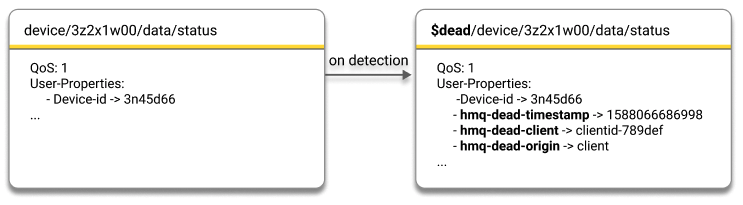
| User Property Name | Description |
|---|---|
hmq-dead-timestamp |
The UNIX timestamp when the HiveMQ broker detects the dead message |
hmq-dead-origin |
The type of the original publisher of the dead message
|
hmq-dead-client |
When the origin type of the dead message is client, this property shows the client ID of the client that published the dead message |
Dead Messages Topic Available Information
The Dead Messages Topic add-on preserves the following information for each dead message:
-
The original MQTT message payload
-
All MQTT metadata:
| To preserve the retained flag of the dead message, the subscription to the $dead topic must have a retain-as-published flag set. |
Dead Messages Topic Metrics
The Dead Messages Topic add-on exposes additional metrics in the HiveMQ standard metrics:
| Metric | Type | Description |
|---|---|---|
com.hivemq.messages.dead.count |
|
The total number of dead messages the broker detects |
com.hivemq.messages.dead.topic.enqueued.count |
|
The number of dead messages that are queued to a $dead topic |
com.hivemq.messages.dead.topic.dead.count |
|
The number of $dead messages that are dead more than once |
com.hivemq.messages.dead.topic.dropped.count |
|
The number of $dead messages that are dropped |
com.hivemq.messages.dead.topic.expired.count |
|
The number of $dead messages that are expired |
com.hivemq.messages.expired.topic.dead.count |
|
The number of $expired messages that are dead |
com.hivemq.messages.dropped.topic.dead.count |
|
The number of $dropped messages that are dead |
For a full list of HiveMQ metrics, see Available Metrics.
Client Lifecycle Topic
The Client Lifecycle Topic add-on publishes a message to the $client-events/ namespace each time a client connects to or disconnects from HiveMQ.
Unlike the other topic add-ons, the Client Lifecycle Topic add-on does not re-publish an existing MQTT message. Instead, HiveMQ generates a new message that describes the lifecycle event. A JSON payload in the message contains all known information about the affected client. The result is an event stream of the connectivity of your clients. You can consume the stream with any MQTT client or forward the stream to external systems such as Kafka. You do not need to poll the HiveMQ REST API or write an extension.
HiveMQ publishes all client lifecycle events with QoS 1 (at least once). The messages are not retained. A subscriber receives only the events that occur while the subscription exists. To receive events across subscriber reconnects, use a persistent session.
Enable the Client Lifecycle Topic Add-on
-
To enable the Client Lifecycle Topic add-on, open your HiveMQ configuration XML file and locate the
mqtt-addonssection. -
Set the
<enabled>tag of<client-lifecycle-topic>totrue.
| In clusters with hundreds of thousands or millions of connections, the add-on can noticeably affect performance. The impact is greatest when many clients connect or disconnect at once, such as during rolling upgrades or daily usage peaks. For these clusters, test the add-on in a staging environment before you deploy it to production. |
<?xml version="1.0"?>
<hivemq xmlns:xsi="http://www.w3.org/2001/XMLSchema-instance">
    ...

    <mqtt-addons>
        <client-lifecycle-topic>
            <enabled>true</enabled>
        </client-lifecycle-topic>
    </mqtt-addons>
    ...
</hivemq>
When no further options are configured, HiveMQ uses the client identifier to build the topic. HiveMQ publishes an event for every connect and for every disconnect, regardless of who initiated the disconnect.
To subscribe to the Client Lifecycle Topic, users must have explicit permission.
For example, $client-events/#.
|
You can use all existing MQTT and HiveMQ subscription and consumer mechanisms to interact with the client lifecycle events. For example, subscribe an MQTT client to $client-events/# to interact with the client lifecycle events. You can also configure HiveMQ extensions, such as the HiveMQ Enterprise Extension for Kafka, to consume messages from the $client-events topic.
| When you subscribe to a $client-events topic, standard queuing mechanisms apply. These mechanisms include maximum queue length and limits for shared subscriptions or consumers. For analytical topics, use dedicated clients and shared subscriptions with appropriately configured queue limits. |
Client Lifecycle Topic Structure
HiveMQ publishes each client lifecycle event to a topic that identifies the client the event belongs to:
$client-events/all/<identifier type>/<identifier value>
| Topic Segment | Description |
|---|---|
|
The reserved namespace of the Client Lifecycle Topic add-on. |
|
A fixed group segment that is reserved for future use. |
|
The type of the identifier in the next segment. Possible values are |
|
The client identifier or the MQTT username of the client, based on the identifier type. |
For example, a client with the client identifier sensor-42 produces events on $client-events/all/client-id/sensor-42.
A subscription to $client-events/all/client-id/+ receives the events of all clients that are identified by their client identifier.
Client Lifecycle Topic Configuration Options
The <client-lifecycle-topic> element supports two optional child elements. The <identifier> element controls the topic that HiveMQ uses. The <triggers> element specifies events that HiveMQ publishes.
<?xml version="1.0"?>
<hivemq xmlns:xsi="http://www.w3.org/2001/XMLSchema-instance">
    ...

    <mqtt-addons>
        <client-lifecycle-topic>
            <enabled>true</enabled>
            <identifier>
                <client-id/>
            </identifier>
            <triggers>
                <client-connected/>
                <client-disconnected>
                    <client/>
                    <server/>
                    <session-taken-over/>
                    <unspecified/>
                </client-disconnected>
            </triggers>
        </client-lifecycle-topic>
    </mqtt-addons>
    ...
</hivemq>| Option | Default | Description |
|---|---|---|
|
|
Optional element that selects the identifier that HiveMQ uses in the topic. If present, the
|
|
all triggers |
Optional element that selects the lifecycle events that HiveMQ publishes. If present, HiveMQ enables only the listed triggers. The element must list at least one trigger:
|
|
all initiators |
Restricts the disconnect events to specific initiators. If the element is empty, HiveMQ enables all initiators:
|
Do not use an empty <triggers/> element.An empty <triggers/> element selects no triggers, so the add-on has no effect.HiveMQ treats the empty element as a configuration error, logs a warning, and doesn’t start. This behavior applies whether <enabled> is true or false.To select all lifecycle events, omit the <triggers> element.Note that an empty <client-disconnected/> element is valid and selects all disconnect initiators.
|
When you configure the username identifier, HiveMQ uses the client identifier for every client that connects without an MQTT username.For these clients, HiveMQ sets the identifier type segment of the topic to client-id.To receive events for these clients, subscribe to $client-events/all/+/+ or $client-events/#. |
Percent-Encoding of the Identifier
| MQTT client identifiers and usernames can contain characters that are not allowed in an MQTT topic name. Some characters can also change the structure of the topic. To keep the topic valid and the number of topic levels stable, HiveMQ applies standard percent-encoding (URL encoding) to the identifier segment of the topic, but only to the following four characters. All other characters, including non-ASCII ones, are left unchanged. |
| Character | Encoded As |
|---|---|
|
|
|
|
|
|
|
|
For example, a client with the client identifier building/1+2 produces events on $client-events/all/client-id/building%2F1%2B2.
Because % is the escape character, HiveMQ always encodes % first. As a result, a single percent-decoding step can recover the original value.
The clientId and username fields of the JSON payload always contain the original, unencoded values.
Each encoded character grows from one byte to three bytes. Therefore, the encoding can cause an otherwise acceptable identifier to exceed the length limit.
HiveMQ skips the event in the following cases:
-
The resulting topic is still not a valid MQTT topic name. For example, the client identifier contains a null character.
-
The encoded topic exceeds the MQTT protocol maximum of 65535 bytes.
When HiveMQ skips an event, HiveMQ increments the com.hivemq.messages.client-lifecycle-topic.skipped.count metric.
A skipped event never affects the connection of the client.
Client Lifecycle Topic Payload
HiveMQ 4.57 renamed all fields of the client lifecycle event payload to camelCase. For example, Event type is now eventType.
If you consume client lifecycle events that HiveMQ 4.56 produces, update your consumers before you upgrade.
For a complete mapping of the previous field names to the new field names, see the HiveMQ 4.56 to 4.57 Migration Guide.
|
The payload of each client lifecycle event is a UTF-8 encoded JSON object. HiveMQ omits fields that are not known for the client from the JSON. A subscriber only sees the information that is actually available. Do not rely on the order of the fields. Expect additional fields in future HiveMQ versions.
| The following examples are formatted for readability. HiveMQ sends the payload without additional whitespace. |
{
  "eventType": "CONNECTED",
  "timestamp": 1756377600000,
  "sourceIp": "192.168.0.1",
  "clientId": "sensor-42",
  "clientIdBrokerAssigned": false,
  "nodeIp": "10.0.0.7",
  "listenerPort": 1883,
  "tlsConnection": false,
  "mqttVersion": "MQTTv5",
  "username": "my-user"
}{
"eventType": "DISCONNECTED",
"disconnectInitiator": "CLIENT",
"disconnectReasonCode": 0,
"timestamp": 1756377900000,
"timeElapsedSinceConnect": 300000,
"sourceIp": "192.168.0.1",
"clientId": "sensor-42",
"clientIdBrokerAssigned": false,
"nodeIp": "10.0.0.7",
"listenerPort": 1883,
"tlsConnection": false,
"mqttVersion": "MQTTv5",
"username": "my-user"
}| Field | Type | Description |
|---|---|---|
|
String |
The type of the lifecycle event. Possible values are |
|
String |
The party that ended the connection. Possible values are |
|
Number |
The numeric MQTT 5 disconnect reason code. For example, |
|
Number |
The UNIX timestamp of the event in milliseconds. Always present. |
|
Number |
The number of milliseconds between the connect and the disconnect of the client. Present for disconnect events only. |
|
String |
The IP address of the client. |
|
String |
The client identifier of the client. Always present. |
|
Boolean |
Indicates whether HiveMQ assigned the client identifier because the client connected with an empty client identifier. |
|
String |
The IP address of the cluster node that the client connected to. |
|
Number |
The port of the HiveMQ listener that the client connected to. |
|
Boolean |
Indicates whether the client connected over TLS. The value is |
|
String |
The MQTT version of the connection. Possible values are |
|
String |
The MQTT username of the client. |
|
String |
The common name of the client certificate. Present when the client authenticated with a client certificate, or when a load balancer that terminates TLS forwards the common name over the PROXY protocol. |
|
Array of String |
The DNS names and IP addresses from the subject alternative name extension of the client certificate. Other name types are not included. The field is an empty array when the client presented a certificate that has no subject alternative name extension. The PROXY protocol does not forward subject alternative names, so the field is absent for a TLS connection that a load balancer terminates |
In addition to the JSON payload, a CONNECTED event carries the MQTT 5 user properties that the client sent in its CONNECT packet.
DISCONNECTED events carry no user properties.
| HiveMQ forwards the CONNECT user properties unchanged. Any data in the user properties, such as tokens or site identifiers, becomes visible to every subscriber of the corresponding $client-events topic. Consider this visibility when you grant subscription permissions. |
HiveMQ does not guarantee that the timestamp values of connect and disconnect events are correctly ordered relative to each other.
Treat the values as approximate points in time. Do not use the values to order events.
|
The disconnectReasonCode field is not always present, even for disconnect events.
The field is missing when the connection ends and HiveMQ cannot determine a reason code. The most important case is a client that closes the network connection without an MQTT DISCONNECT packet. The field is also missing for the events that HiveMQ generates when a cluster node leaves the cluster.
Treat a missing disconnectReasonCode as unknown, not as a normal disconnection. To distinguish the kinds of disconnect, use the disconnectInitiator field, which is always present for disconnect events.
|
| The reverse also applies: a present reason code does not mean that the client sent a reason code. HiveMQ reports an MQTT 3 client that disconnects gracefully with reason code 0 (Normal disconnection). The MQTT 3 DISCONNECT packet has no reason code field, so HiveMQ assumes a normal disconnection. HiveMQ also records the reason code of a server-side disconnect for MQTT 3 clients, although HiveMQ sends no reason code to the client. |
Client Lifecycle Topic Message Handling
Client lifecycle events are regular MQTT messages that HiveMQ generates internally rather than receives from a client. These events enter the publish pipeline after inbound processing. Inbound extension interceptors and inbound Data Hub policies never process the events. All processing from delivery onward applies as usual.
-
Message expiry: Client lifecycle events do not carry a message expiry interval of their own. The configured maximum message expiry interval of your broker applies. An event can expire before delivery, either in the queue or while an in-flight delivery is pending. If the Expired Messages Topic add-on is enabled, HiveMQ re-publishes the expired event to $expired/$client-events/all/….
-
Dropped messages: HiveMQ can drop an event, for example, because the queue of a subscriber is full. If the Dropped Messages Topic add-on is enabled, HiveMQ re-publishes the dropped event to $dropped/$client-events/all/….
-
Dead messages: If no client subscribes to the topic of an event and the Dead Messages Topic add-on is enabled, HiveMQ re-publishes the event to $dead/$client-events/all/… and sets the
hmq-dead-originuser property tobrokerbecause HiveMQ generated the message. HiveMQ publishes lifecycle events for every client, regardless of whether a subscriber exists. Therefore, if you enable both add-ons at the same time, the volume of dead messages can be high.
| The re-published topics combine two reserved namespaces, for example $dead/$client-events/all/client-id/my-client. Such a topic is a valid MQTT topic name because MQTT treats the $ character specially at the first topic level only. The same rule applies to subscriptions. A subscription to does not receive these messages. A subscription to $dead/, $expired/, or $dropped/ receives the messages, and the wildcard matches the nested $client-events level as usual. |
In a cluster, HiveMQ publishes each lifecycle event once. A subscriber does not receive one copy per cluster node.
Do not grant exclusive subscriptions on individual $client-events topics when your clients connect with randomly generated or broker-assigned client identifiers.
Such identifiers are not known in advance, so the subscription must use a wildcard. A wildcard subscription exposes the lifecycle events, IP addresses, usernames, and certificate details of every other client.
To show each client or tenant only its own events, configure the username identifier and use stable identifiers that you control. Then grant permissions for the exact topic of each identifier.
|
Client Lifecycle Topic Metrics
The Client Lifecycle Topic add-on exposes additional metrics in the HiveMQ standard metrics:
| Metric | Type | Description |
|---|---|---|
com.hivemq.messages.client-lifecycle-topic.published.count |
|
The number of client lifecycle events that are published to a $client-events topic. |
com.hivemq.messages.client-lifecycle-topic.skipped.count |
|
The number of client lifecycle events that are skipped because the resulting topic is not a valid MQTT topic name or exceeds the maximum topic length. |
For a full list of HiveMQ metrics, see Available Metrics.
Add-ons Example Use Cases
Messages that expire, drop, or have no subscribers on your MQTT broker are never delivered to clients. In some instances, lack of delivery is desirable. In other cases, expired, dropped, and dead messages requires further attention. Previously, data for these types of messages was limited and difficult to obtain. HiveMQ developed MQTT Topic Add-ons to simplify access to all the expired, dropped, and dead message data and metrics you need to understand and optimize your IoT applications.
Expired Messages Topic: Smart Car Use Case
In this example, a smart-car manufacturer offers a mobile app that customers use to unlock specific smart cars. To ensure customer satisfaction and fine-tune app functionality, the smart-car manufacturer requires precise information about app performance. Upon request, the mobile app sends an MQTT message to unlock the door of a smart car. If the requested MQTT message fails to arrive at the car within a predefined number of seconds, the message expires on the HiveMQ broker. In this case, message expiry is crucial since late delivery of the MQTT message could cause a car door to open at an inappropriate moment.
To gather detailed information on how often messages fail to successfully open a car door within the designated period, the smart-car manufacturer implements the HiveMQ Expired Messages Topic MQTT Add-on. Once the feature is enabled, HiveMQ automatically stores all expired messages to a special MQTT analytical topic. The car manufacturer uses the open-source MQTT CLI (optional) and the HiveMQ Enterprise Extension for Kafka to forward the expired message data to their Kafka cluster for further analysis. For example, to identify which car models are frequently affected.
$expired MQTT topic with the MQTT CLImqtt sub -t $expired/# -h your.broker <mqtt-to-kafka-mapping>
<id>expired-topic-mapping</id>
<!-- Kafka cluster to use for this topic mapping -->
<cluster-id>cluster01</cluster-id>
<!-- List of MQTT topic filters -->
<mqtt-topic-filters>
<mqtt-topic-filter>$expired/#</mqtt-topic-filter>
</mqtt-topic-filters>
<!-- Target Kafka topic -->
<kafka-topic>expired-kafka-topic</kafka-topic>
</mqtt-to-kafka-mapping>Dropped Messages Topic: Fleet Management Use Case
Dropped messages can occur for various reasons and are seldom the desired outcome. In this example, a fleet management company implements the HiveMQ Dropped Messages Topic Add-on to ensure the integrity of their legal reporting. A trucking company uses MQTT messages to track driving times for each driver in the fleet. To comply with stringent legal requirements, it is imperative that all records are accurate and complete. The fleet management company relies on the HiveMQ Dropped Messages Topic Add-on to automatically store all dropped messages. Although the messages were not delivered to the desired recipient, no data is permanently lost.
To preserve a complete history and analyze the data further, the fleet management company uses the MQTT CLI (optional) and the HiveMQ Enterprose Extansion for Kafka to forward the accumulated dropped message data to their Kafka cluster.
$dropped MQTT topic with the MQTT CLImqtt sub -t $dropped/# -h your.broker <mqtt-to-kafka-mapping>
<id>dropped-topic-mapping</id>
<!-- Kafka cluster to use for this topic mapping -->
<cluster-id>cluster01</cluster-id>
<!-- List of MQTT topic filters -->
<mqtt-topic-filters>
<mqtt-topic-filter>$dropped/#</mqtt-topic-filter>
</mqtt-topic-filters>
<!-- Target Kafka topic -->
<kafka-topic>dropped-kafka-topic</kafka-topic>
</mqtt-to-kafka-mapping>Dead Messages Topic: Smart Device Use Case
The ability to recognize and capture MQTT message activity that does not match any subscribers can help you inspect your IoT application and identify unexpected behavior that requires correction or further analysis. For example, you can configure your Kafka extension to forward dead messages to Kafka for further inspection. Or, you can review the sender and timestamp of your dead messages to see which clients exhibit a particular behavior at a specific time.
In this use case, the manufacturer of a smart-home device wants customers to receive a welcome message to their newly-purchased smart device as soon as the device is activated. To achieve this, the manufacturer sends a unique status message to each purchased device and uses the Dead Messages Topic feature to respond to customer events in a timely manner. The HiveMQ broker automatically collects all messages to devices that are not yet activated in a pre-defined dead messages topic. Smart devices that are activated receive a personalized welcome message. The manufacturer forwards dead messages to Kafka for additional reporting. The origin ID and timestamp of all dead messages helps the manufacturer understand and monitor customer behavior and provides a full product history.
$dead MQTT topic with the MQTT CLImqtt sub -t '$dead/#' -h your.broker
NOTE: To prevent the '$' sign from being interpreted as start of an environment variable, you need to escape it with single quotes. <mqtt-to-kafka-mapping>
<id>dead-topic-mapping</id>
<!-- Kafka cluster to use for this topic mapping -->
<cluster-id>cluster01</cluster-id>
<!-- List of MQTT topic filters -->
<mqtt-topic-filters>
<mqtt-topic-filter>$dead/#</mqtt-topic-filter>
</mqtt-topic-filters>
<!-- Target Kafka topic -->
<kafka-topic>dead-kafka-topic</kafka-topic>
</mqtt-to-kafka-mapping>Client Lifecycle Topic: Connected Machinery Use Case
To operate a fleet of connected machines, you need to know when each device connects, when it disconnects, and why it disconnects.
In this use case, a machine builder monitors industrial gateways that are installed at customer sites. Each gateway connects to HiveMQ with a stable client identifier and an MQTT username that identifies the customer. The machine builder enables the Client Lifecycle Topic add-on. The HiveMQ Enterprise Extension for Kafka forwards messages from the $client-events namespace to Kafka.
The resulting event stream answers questions that individual metrics cannot answer:
-
Which gateways reconnect far more often than the rest of the fleet?
-
Which disconnects does the gateway initiate, and which disconnects does the broker or a session takeover cause?
-
How long does a gateway stay connected before the connection ends?
-
Does the disconnect pattern correlate with a firmware version, a listener, or a cluster node?
The disconnectInitiator and timeElapsedSinceConnect fields help you separate planned restarts from unstable network links. The nodeIp and listenerPort fields help you exclude infrastructure problems on the broker side.
$client-events MQTT topic with the MQTT CLImqtt sub -t '$client-events/#' -h your.broker
Enclose the topic filter in single quotes.
Without the quotes, the shell interprets the $ sign as the start of an environment variable.
|
    <mqtt-to-kafka-mapping>
        <id>client-events-topic-mapping</id>

        <!-- Kafka cluster to use for this topic mapping -->
        <cluster-id>cluster01</cluster-id>

        <!-- List of MQTT topic filters -->
        <mqtt-topic-filters>
            <mqtt-topic-filter>$client-events/#</mqtt-topic-filter>
        </mqtt-topic-filters>

        <!-- Target Kafka topic -->
        <kafka-topic>client-events-kafka-topic</kafka-topic>

    </mqtt-to-kafka-mapping>